Assigning a WordFlyers level
Teachers can now assign a specific WordFlyers level for students to work on.
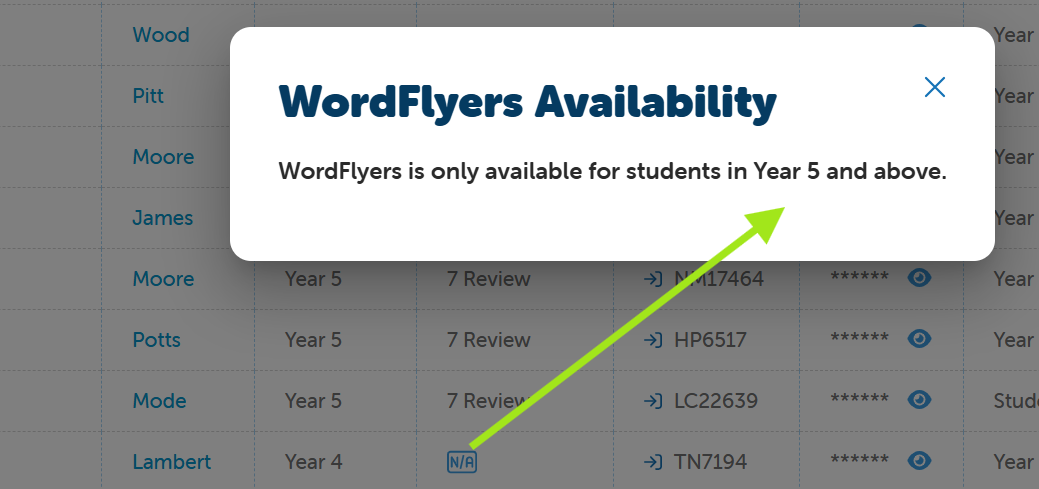
- Note: WordFlyers is only available for students in Year 5 and above
Steps to Assign a Level
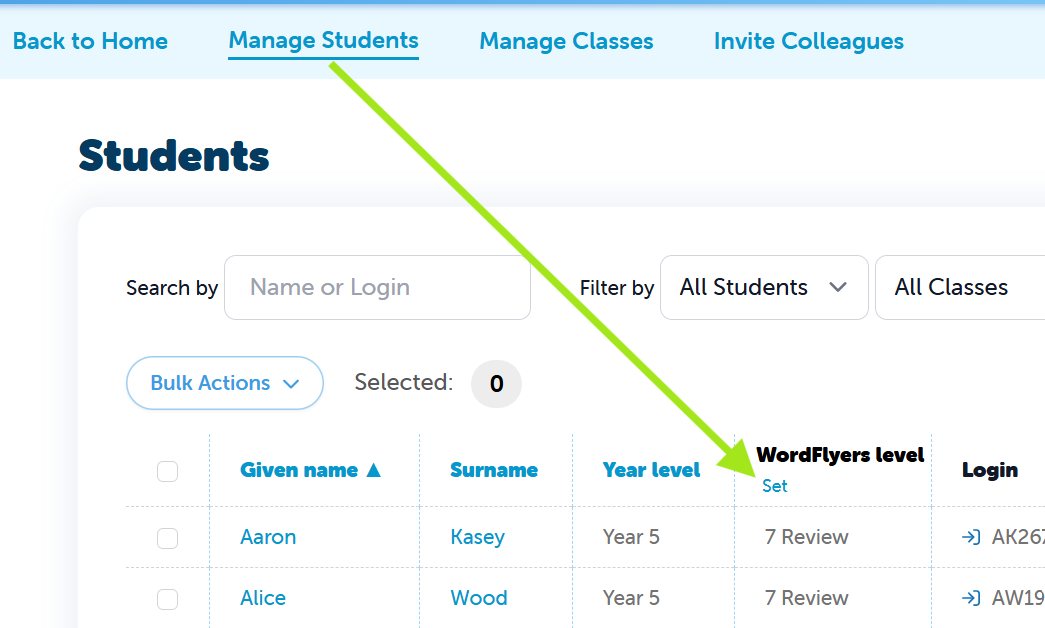
- Go to Manage Students
- In the WordFlyers column, click Set
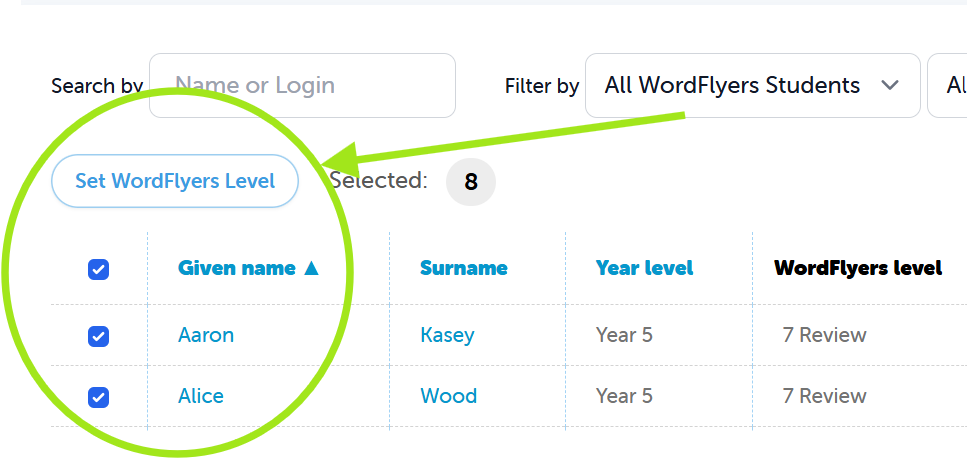
- Select the student(s) by ticking the checkbox next to their name
- To assign the same level to all students, tick the checkbox at the top to select all
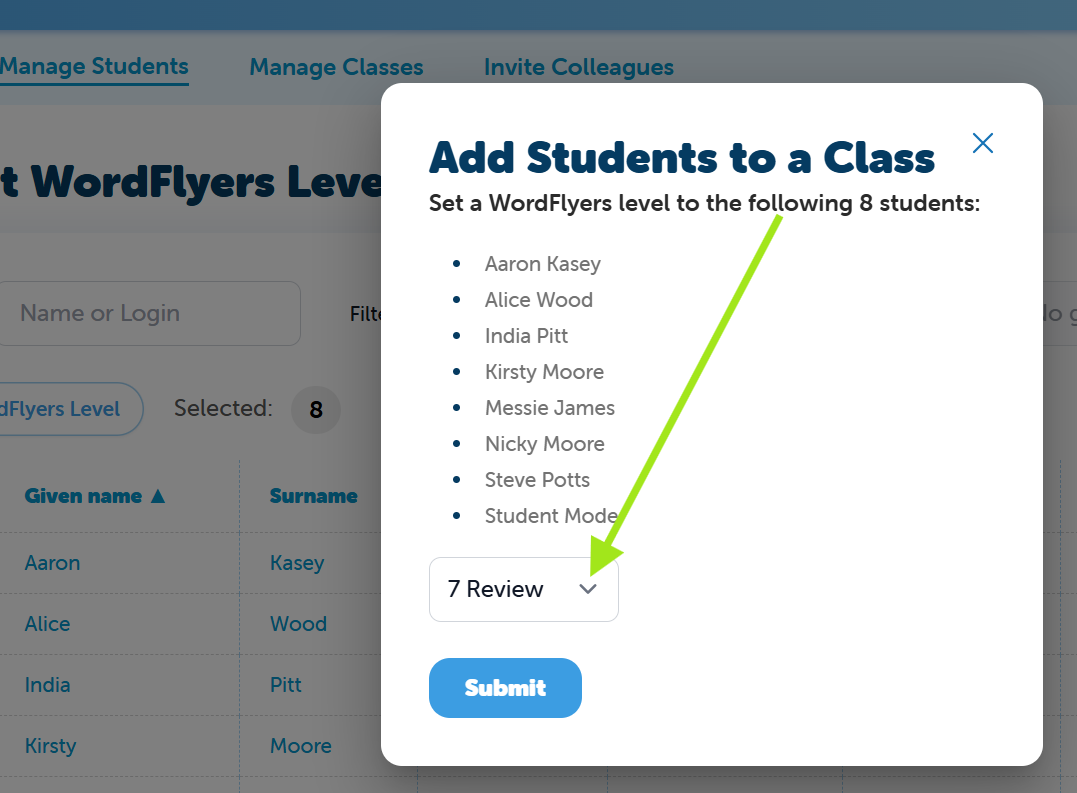
- Click Set WordFlyers Level
- Use the dropdown menu to select the appropriate level
- Click Submit
Not sure which level to choose? Refer to the WordFlyers Content Overview for support.
What Happens Next?
- The selected level will appear in the WordFlyers column.
- Students will land on the assigned level when they log in and open WordFlyers
Monitoring Student Progress
To track how students are progressing, refer to the WordFlyers Report article linked here.
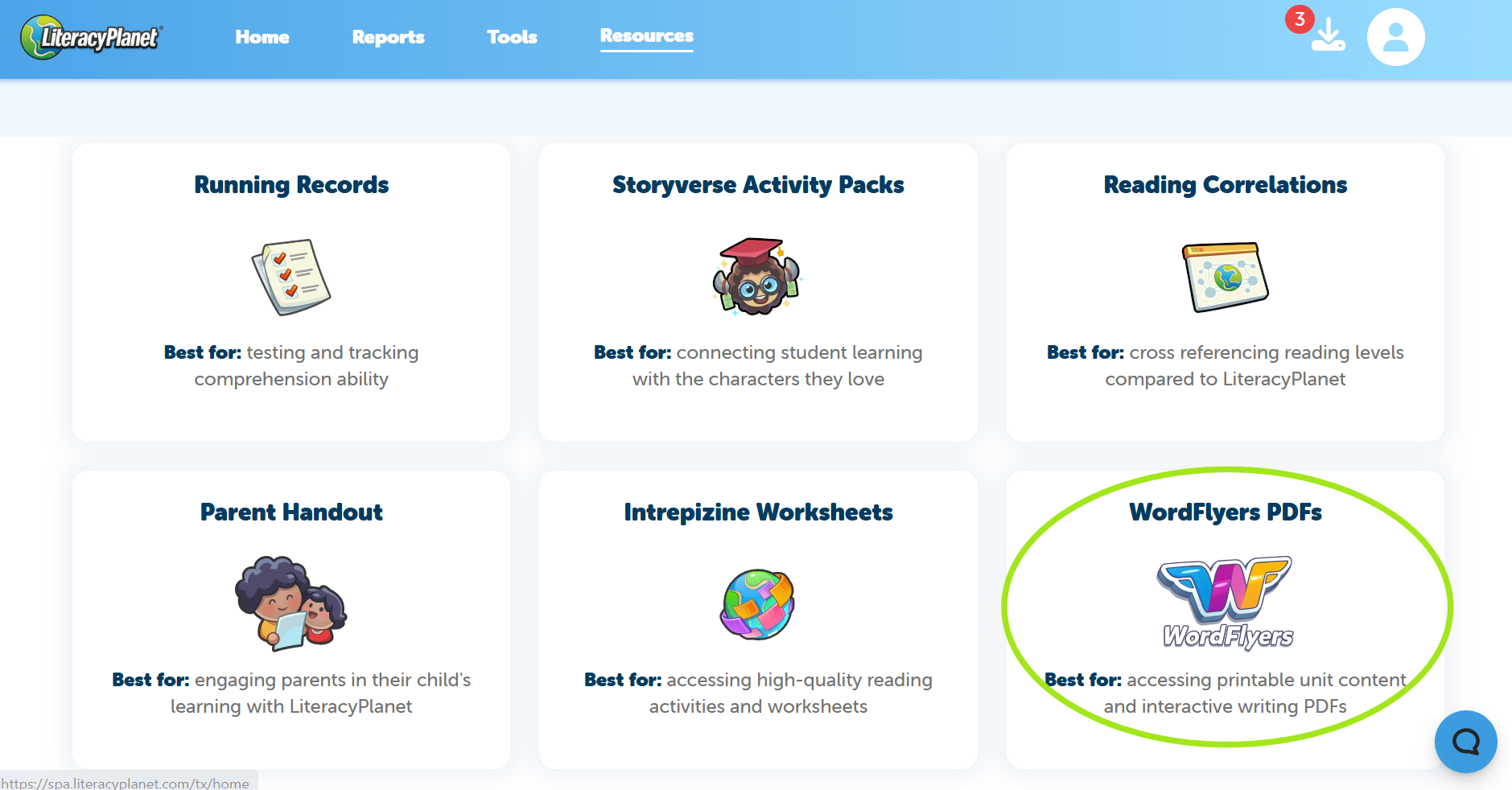
Additional Resources
Interactive PDFs are available to share with students. These can be found in the Resources section on the Teacher Dashboard.