Student Mode for Teachers
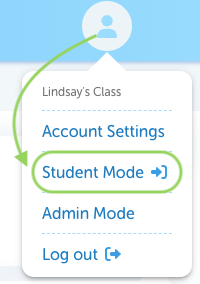
After completing the Quick Start process Student Mode will move to the dropdown in the Profile:
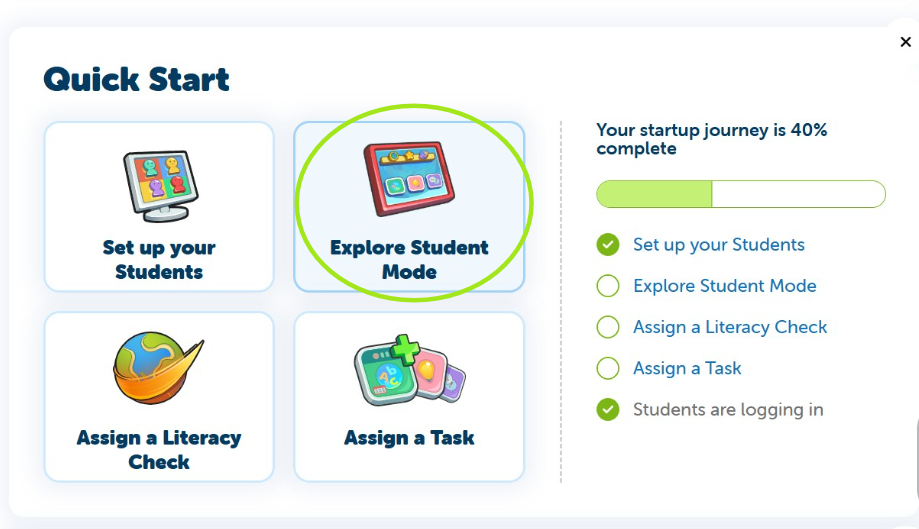
- From the Home page click "Explore Student Mode" in the Quick Star Menu.
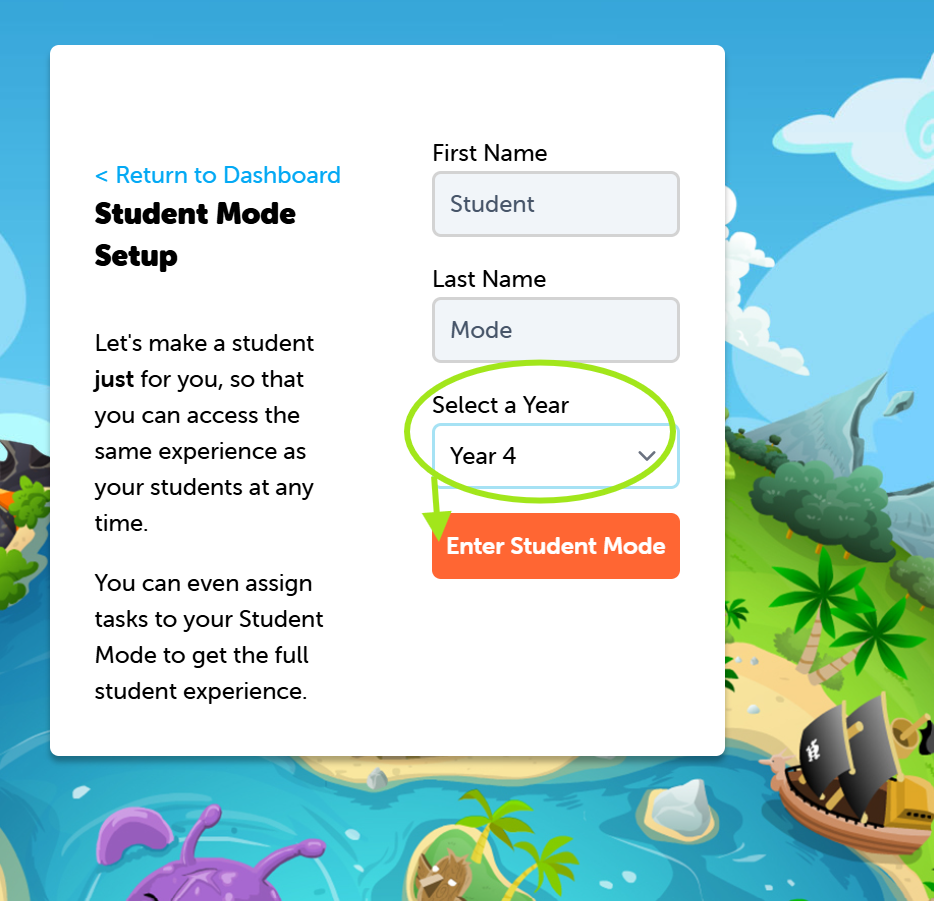
- From the dropdown select a Year.
- Note: Name cannot be changed.
- Click "Enter Student Mode".
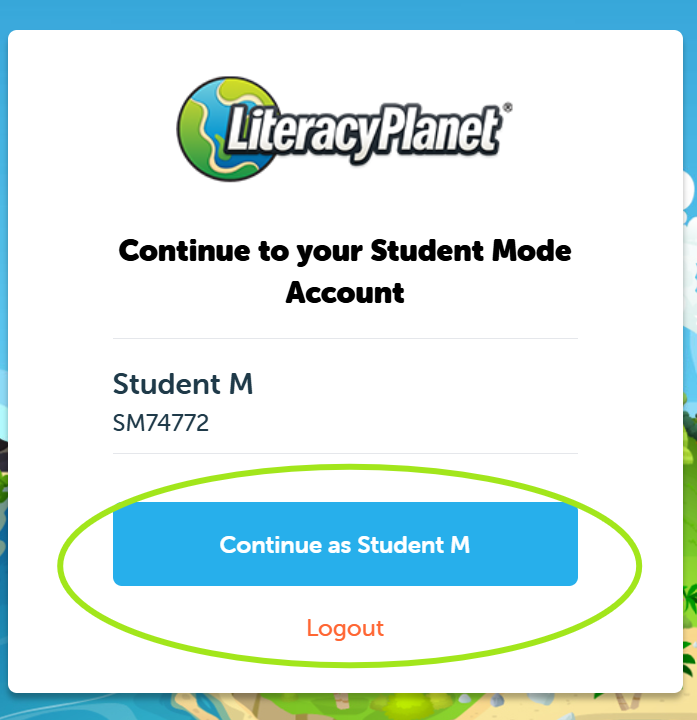
- Click "Continue as Student M".
- Lets start learning what the Student platform looks like.
- Click here to find out!

- Follow the steps to enter the student dashboard.
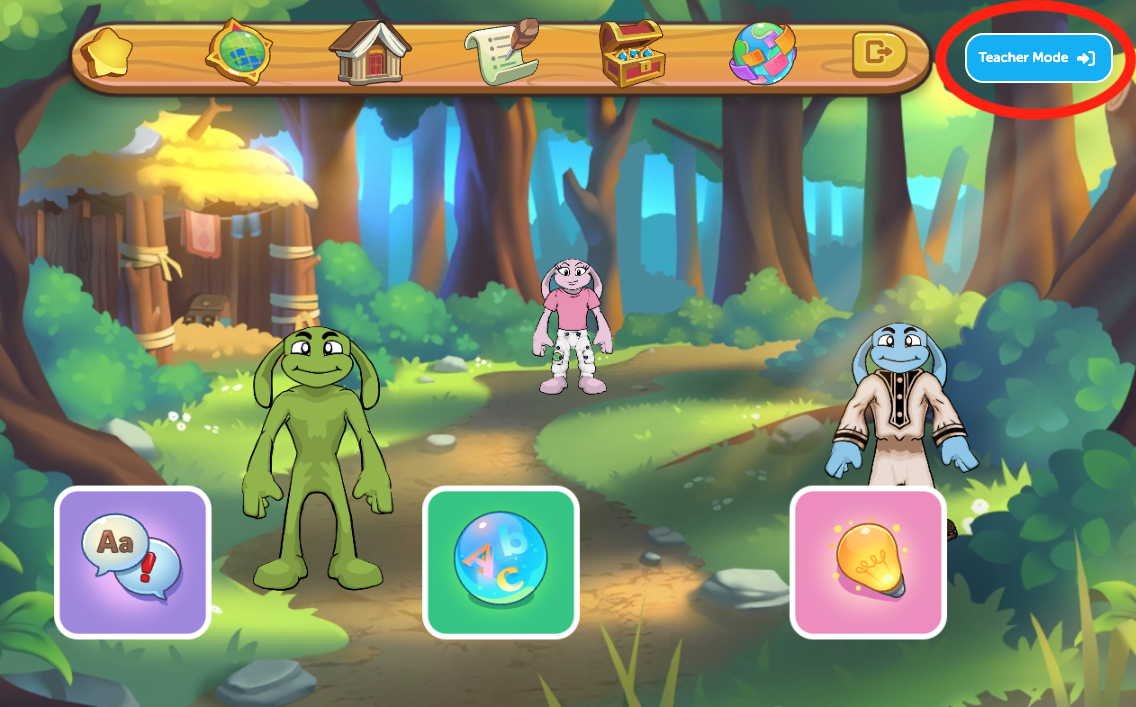
- This is the Student Home page. Any assigned work will appear under the main menu.
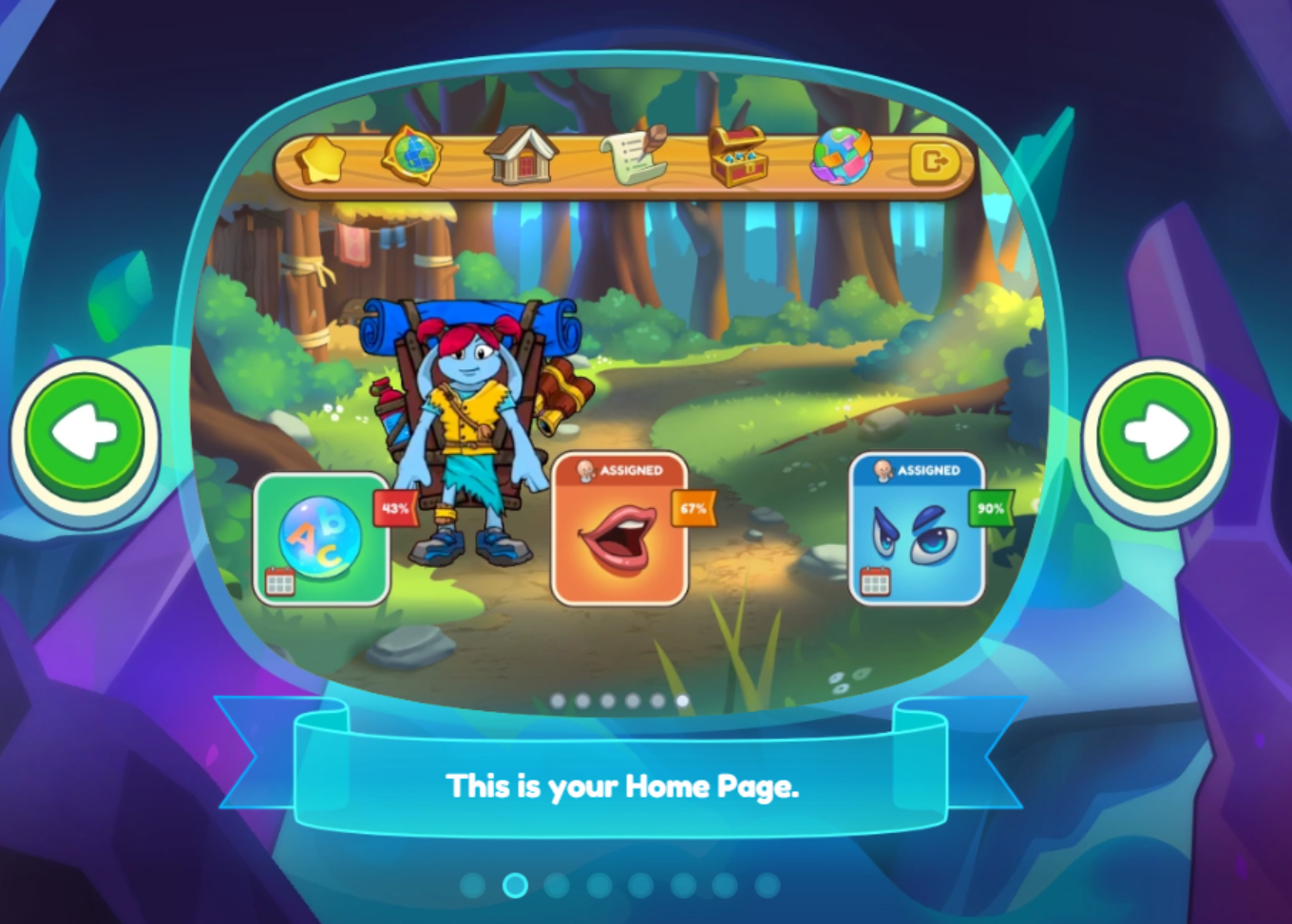
- Students will find the main menu across the top of the page.
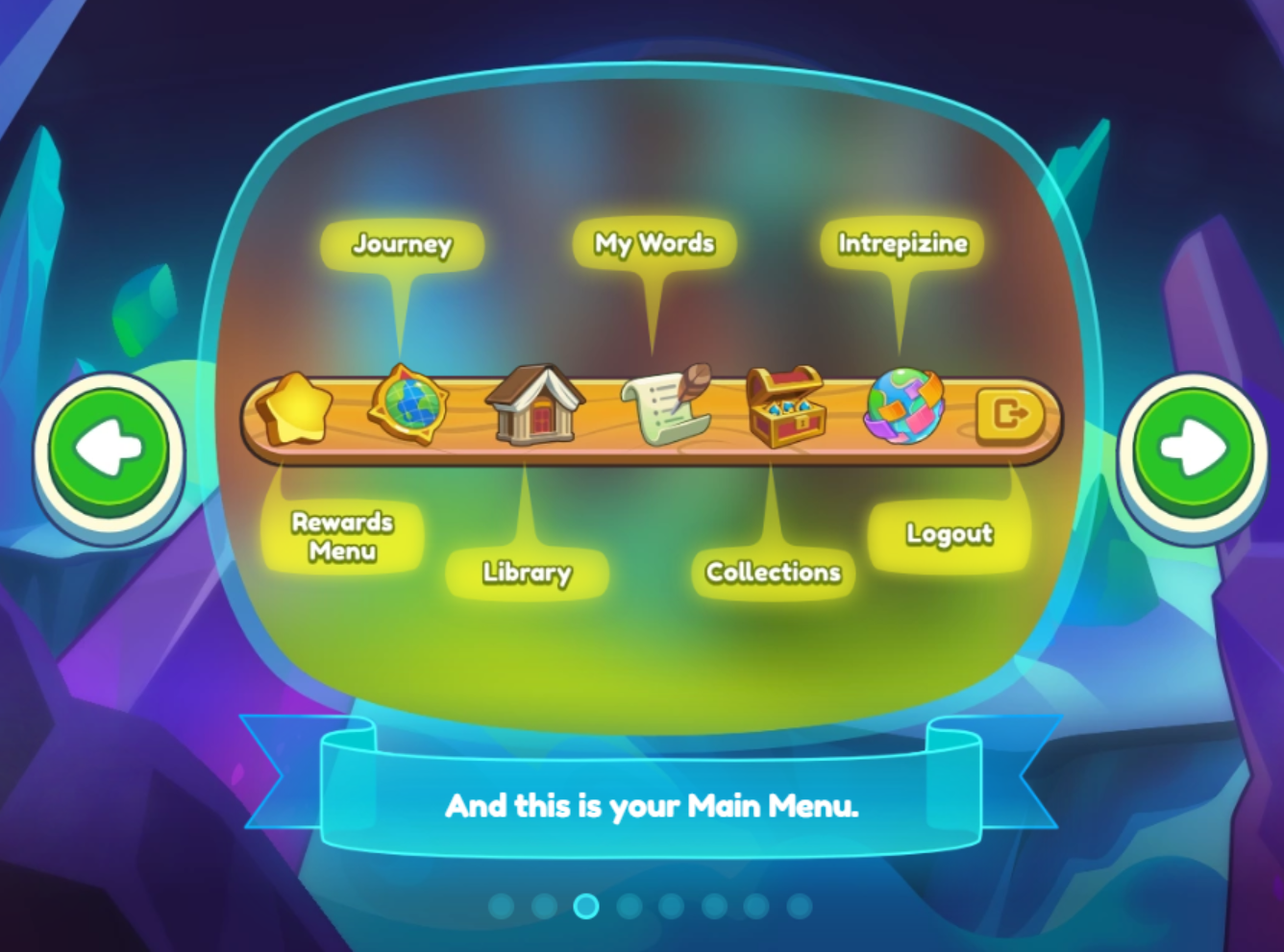
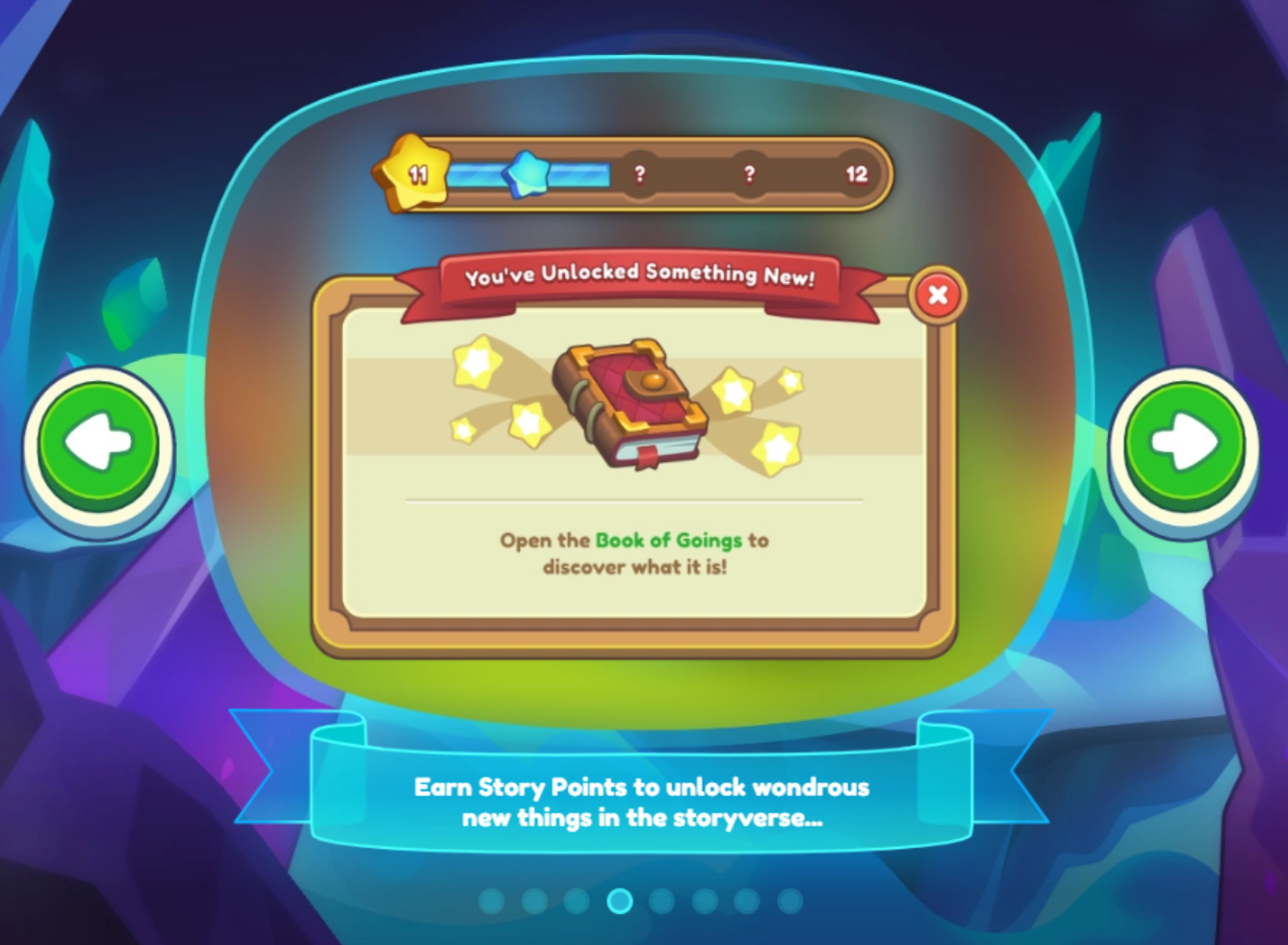
- From the Rewards menu, students can also open the Book of Going and earn story points.
- As they read through the story, they’ll unlock books, characters, and locations.
- Follow the prompts to complete the setup.
Now you know what to expect lets get going!
From here you can easily toggle from Student to Teacher Mode:
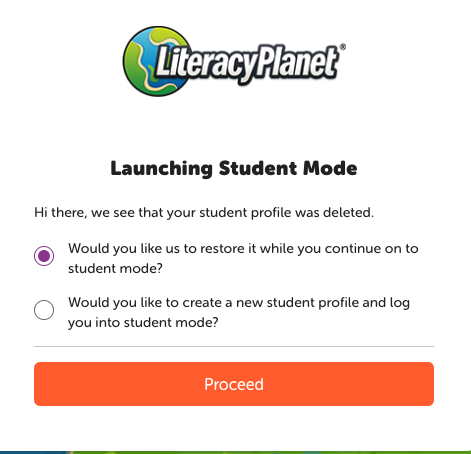
You can move your test student to another class, they do not need to stay in the default Student Mode class. (for instance you want the 'student mode' test student to be in the same class as your students). To move the test Student Mode student follow the Edit Student article. If a test student is deleted, when switching to Student Mode a prompt will appear to restore the student or create new.