
Quick Start Guide - Teachers
Follow these simple steps to complete your setup and get your students ready to use LiteracyPlanet.
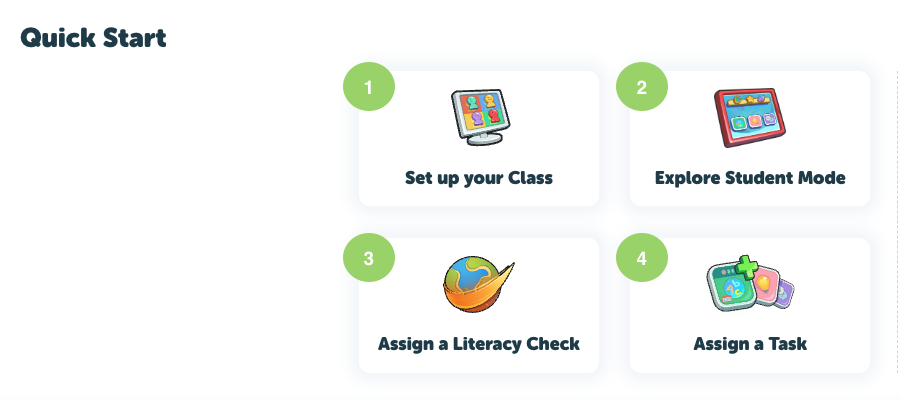
Step 1: Class and Student set up
- Click Set up your class
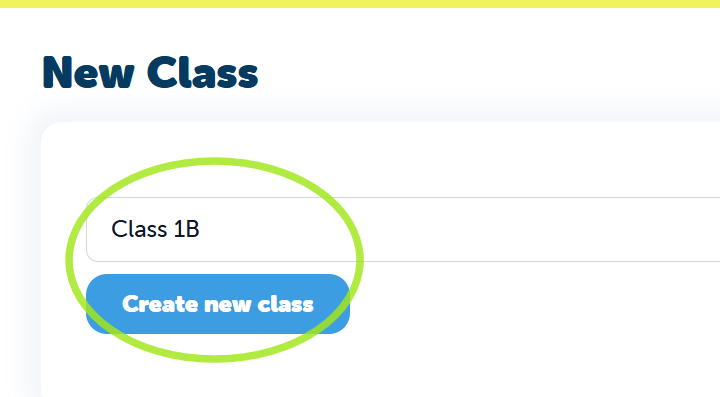
- Enter a class name
- Select Create new class
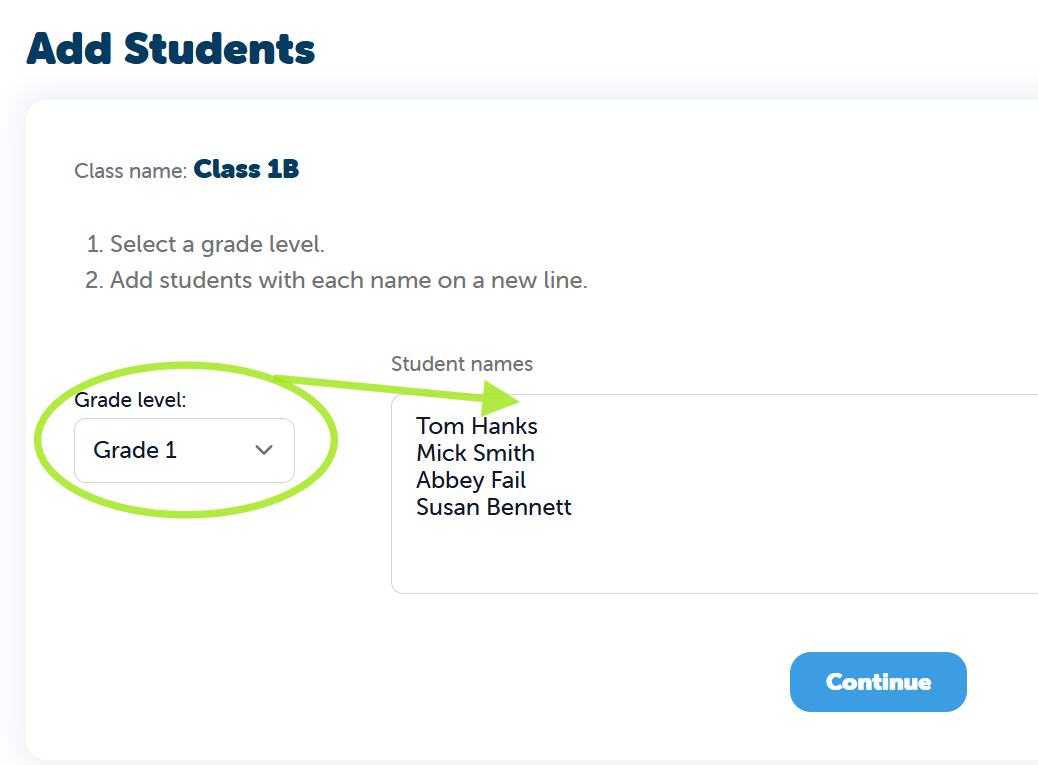
Add Your Students
- Select your grade/year and enter the student names
- Once entered select Continue
The next step is to check that the students’ names are correct. If the first and last names are the wrong way around, you can switch them here.
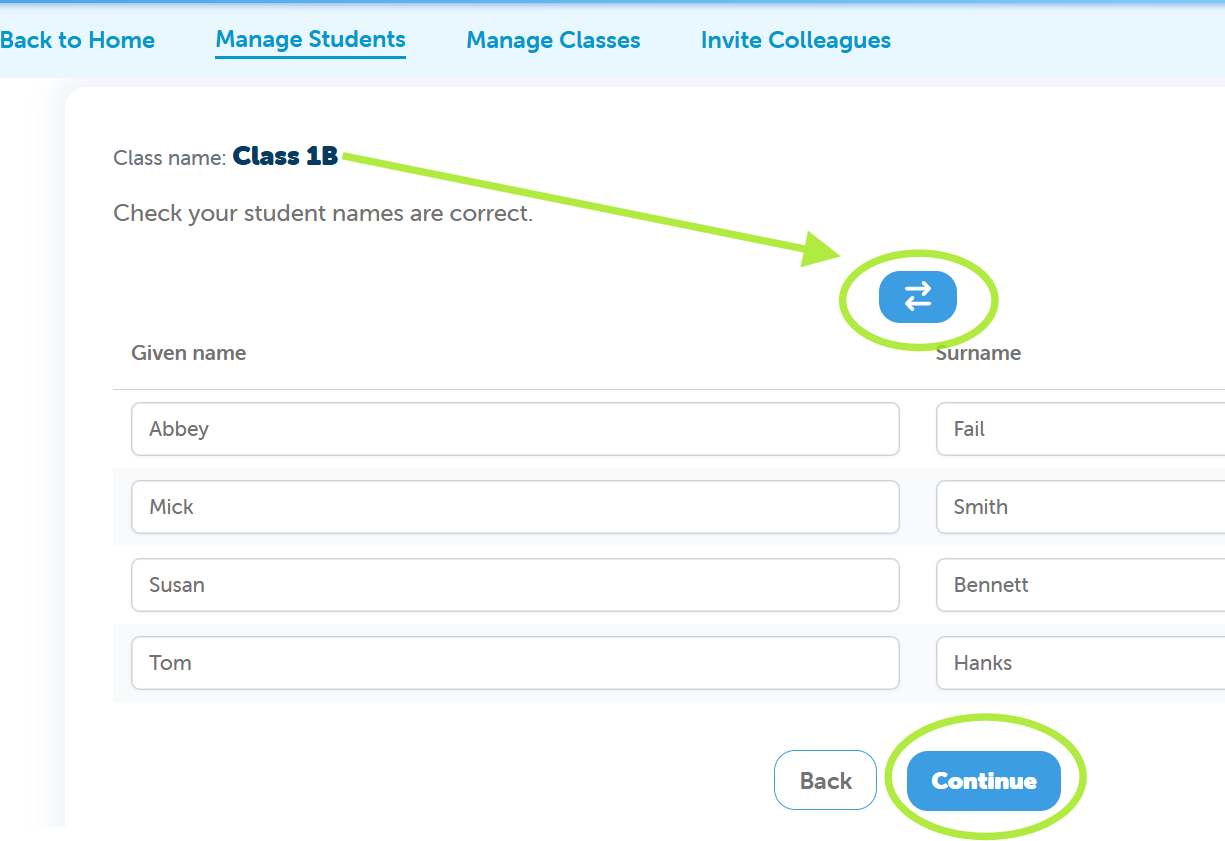
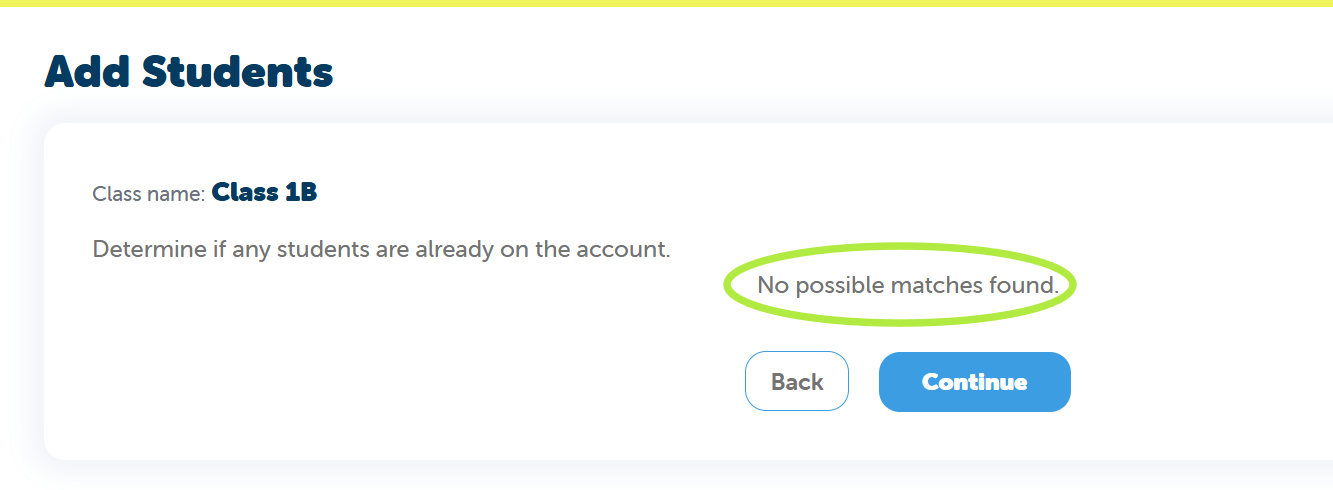
Once checked select Continue to check for possible duplicates on the account to match. If no matches are found select Continue again.
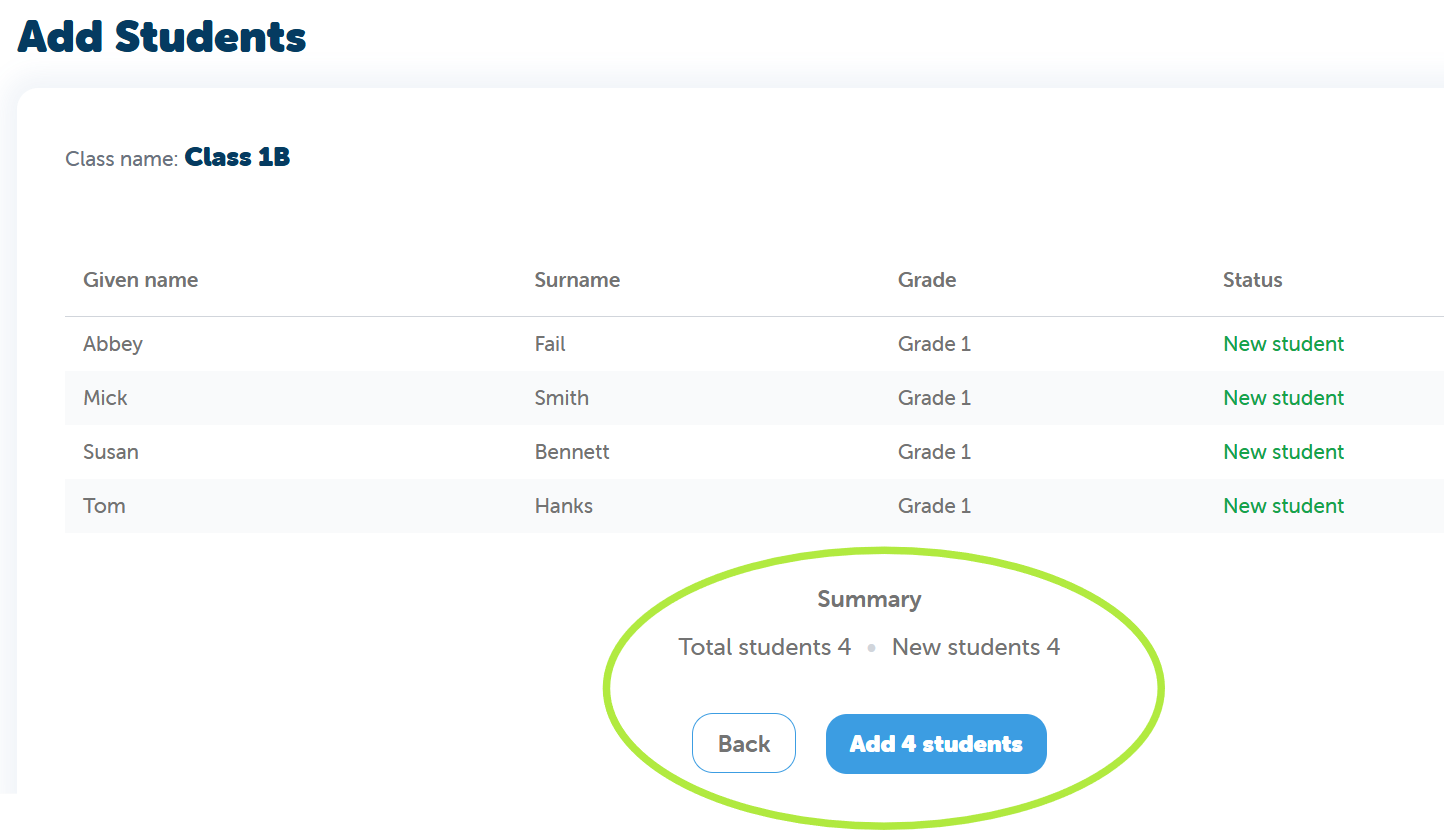
This is your summary page where you can now add your students!
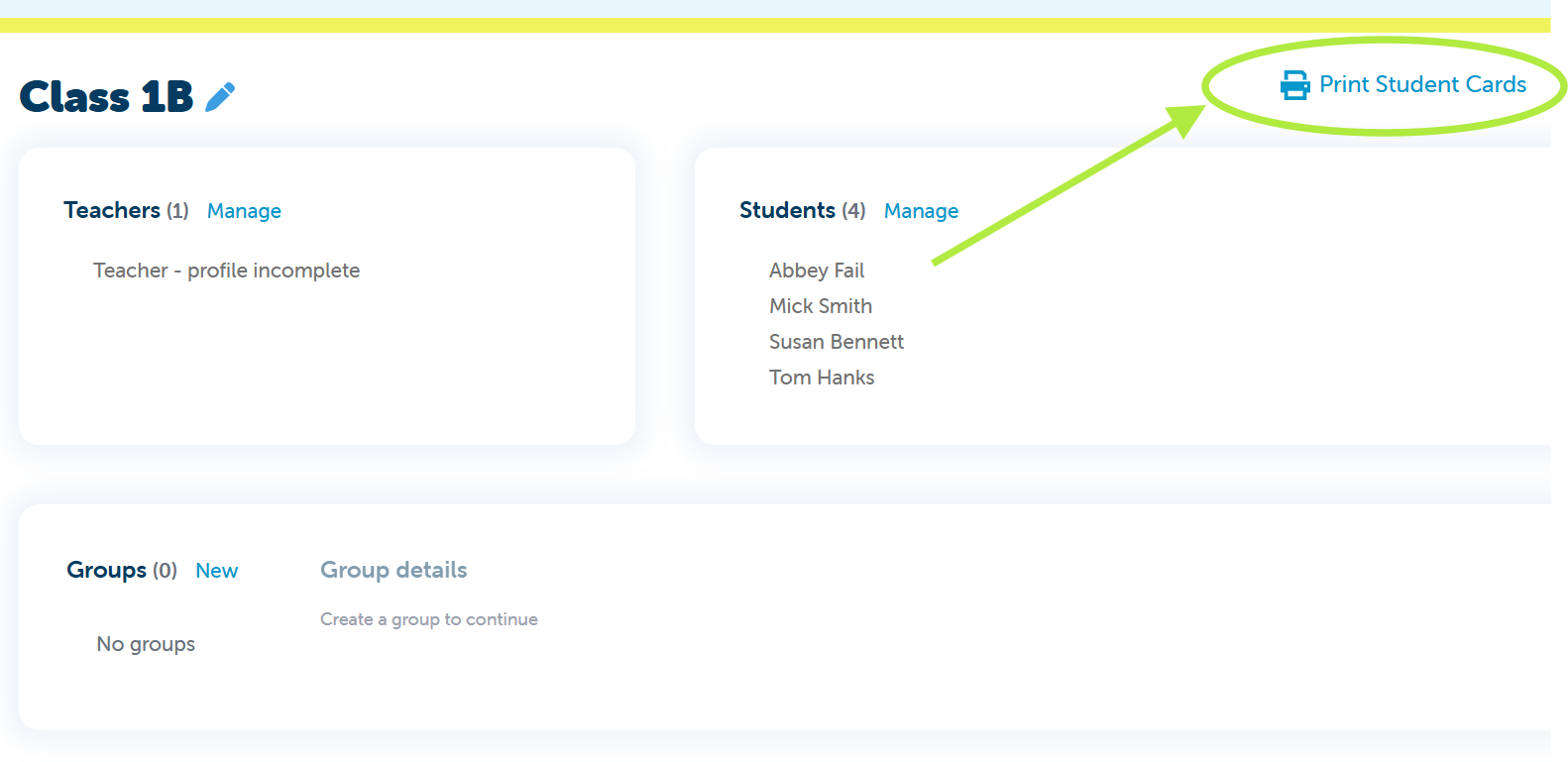
🎉 Congratulations! Your students have now been added.
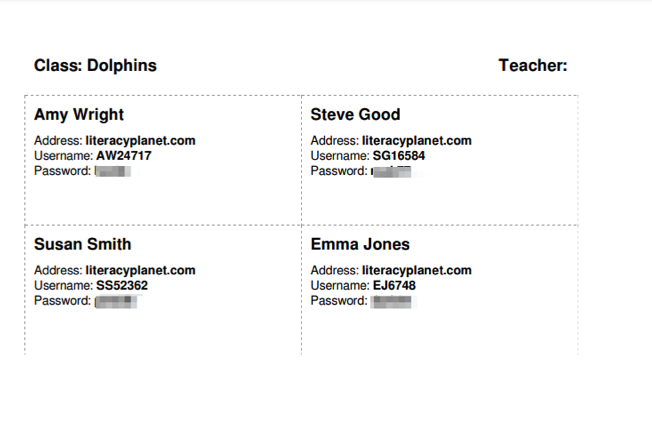
Print Student Logins
You can print student login details directly from Manage Students.
Simply select Print Student Cards
💻 Students use these details to access their own LiteracyPlanet student platform.
Student Login Options
Students can log in using either a browser or a tablet device.
Browser Login
Students using a web browser can log in here:
👉 https://app.literacyplanet.com/login
Tablet Login
Students using tablets can download the LiteracyPlanet dedicated app for students only from the relevant app store.
Step 2: Explore Student Mode
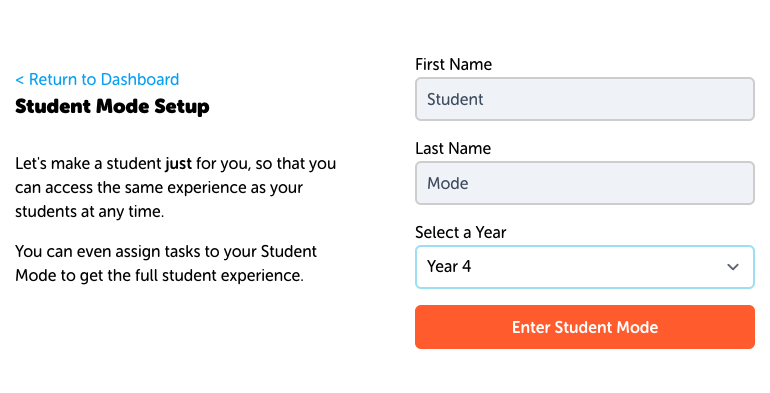
Click Explore Student Mode to access a test student account.
Student Mode is your own test student, allowing you to explore the student interface directly from the teacher dashboard. This is a great way to see exactly what students experience.
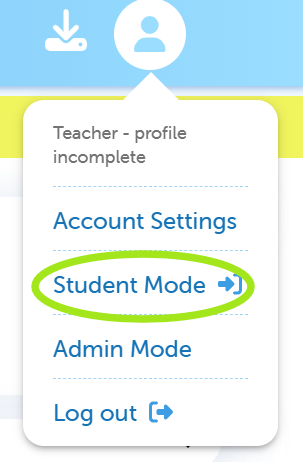
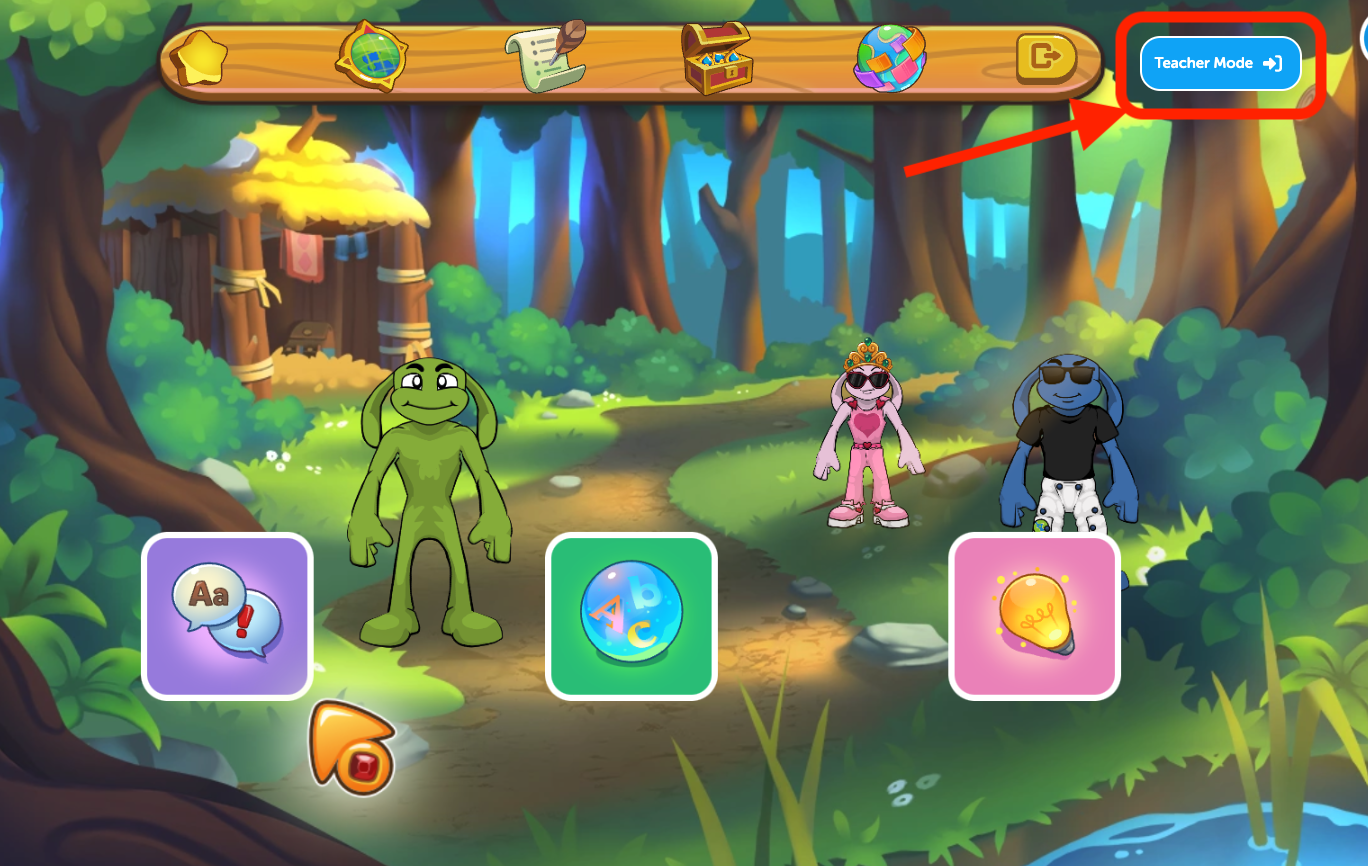
You can easily switch between Teacher Mode and Student Mode from the profile dropdown.
Step 3: Create a Literacy Check
- Create a Literacy Check and assign it to your students by following the provided instructions. Click here for How to assign a Literacy Check
- The Literacy Check must be completed before tasks can be unlocked.
Step 4: Assign Tasks to Students
Once the Literacy Check has been assigned, you can assign tasks to your students by following the provided instructions. Click here for How to assign a Task
🔒 Note: Tasks remain locked until the Literacy Check is complete.
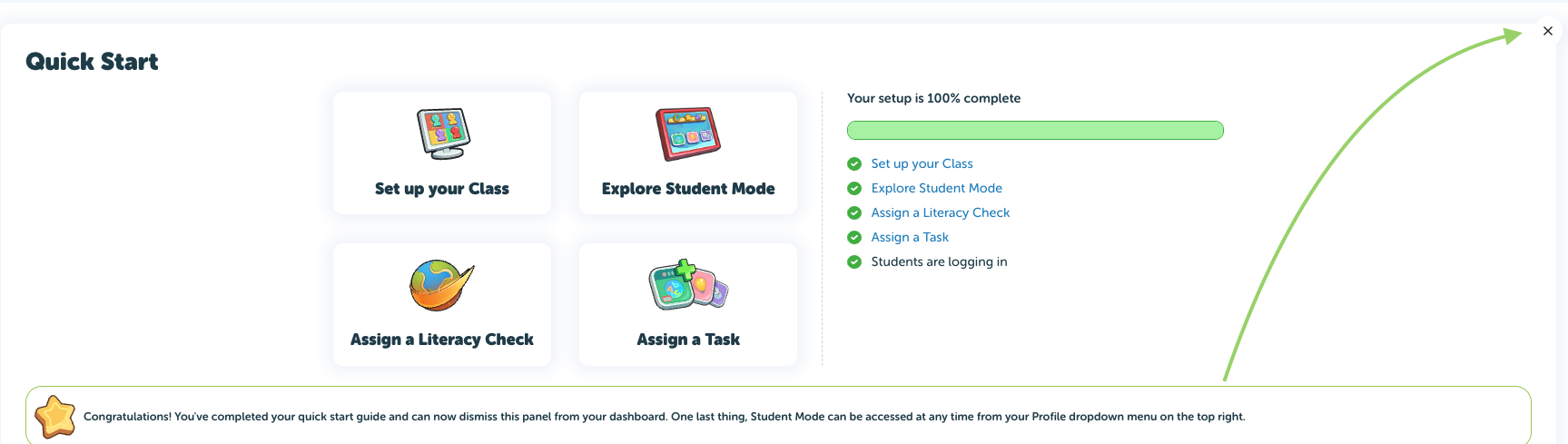
Once setup is 100% complete, you can close the Quick Start window using the X in the top-right corner.
Lastly select your required Font from the options provided here.

Your class is now ready to use LiteracyPlanet!