
Manage Classes -creating a class and adding students
Please note: Do not add a new student if the student already exists on your account. A student can be a member of multiple classes.
Creating a New Class
- From your Teacher Dashboard, select Tools and then Manage Classes.
- In Manage Classes, click New Class.
- Enter the Class Name, click Save.
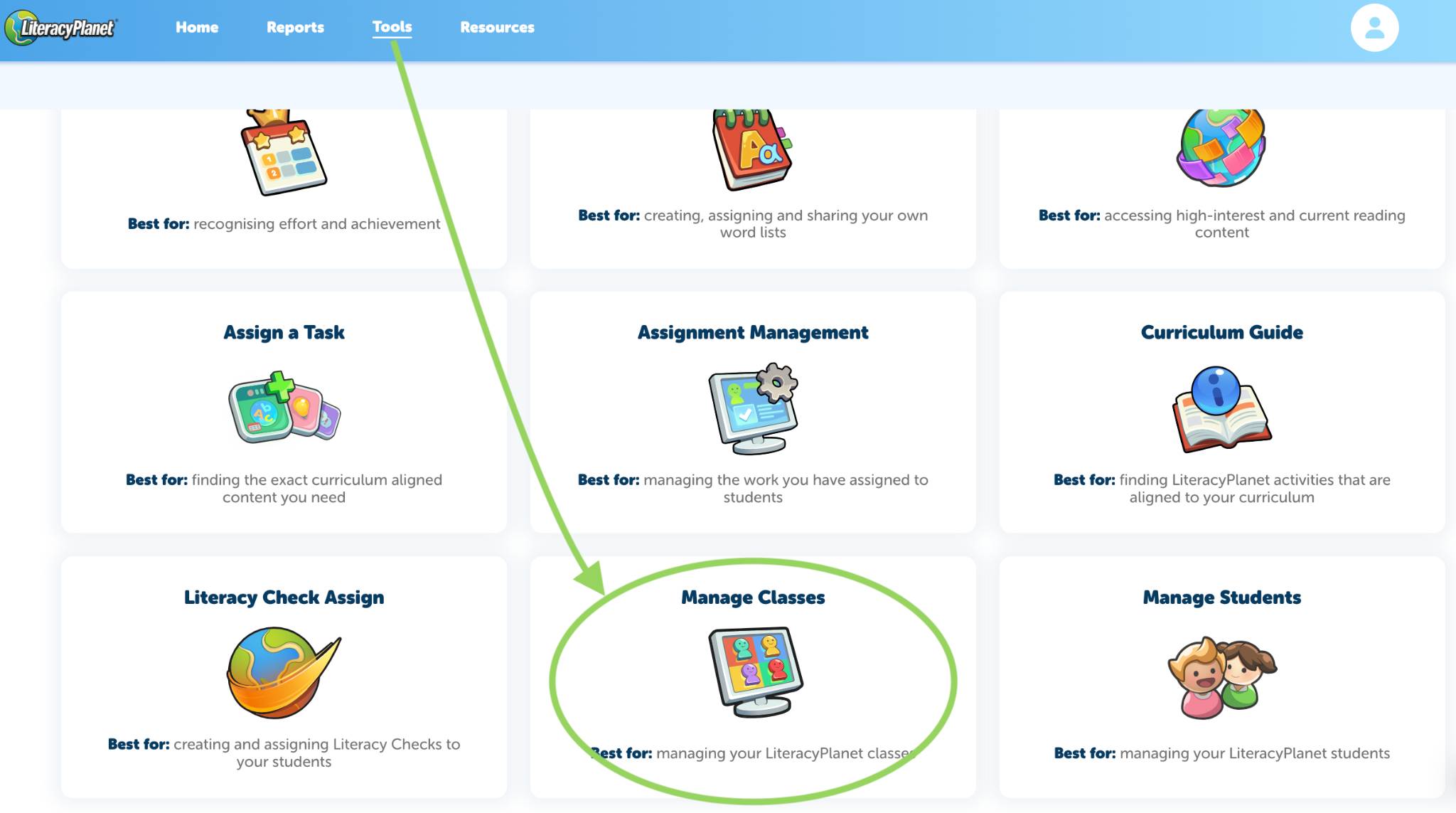

You'll automatically be made the teacher for the class
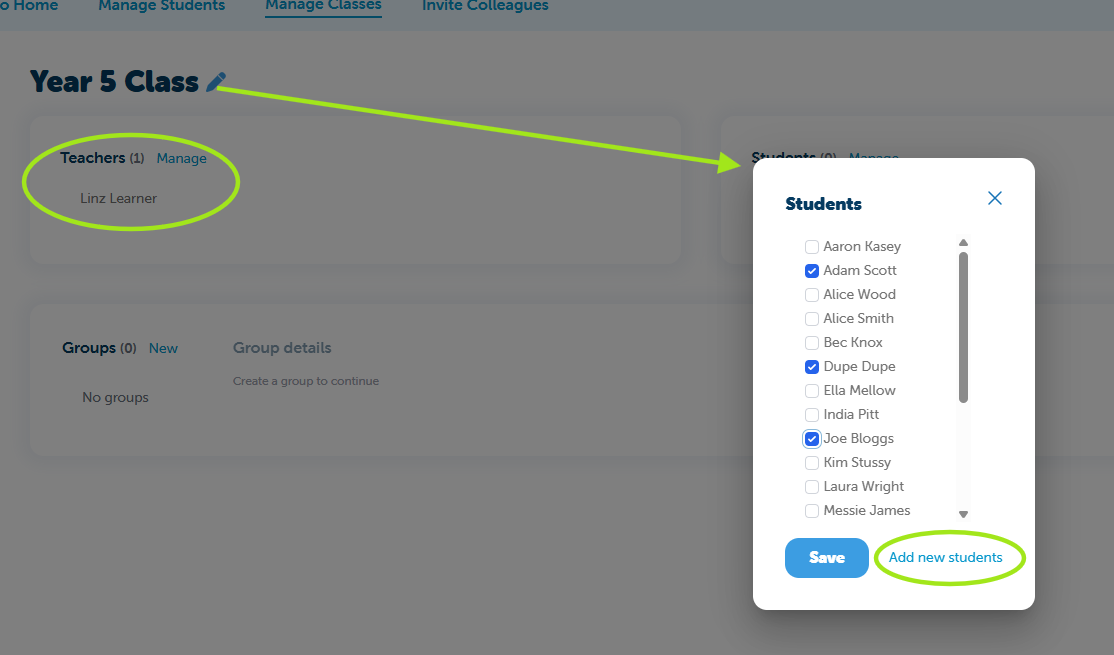
Adding Students to a Class
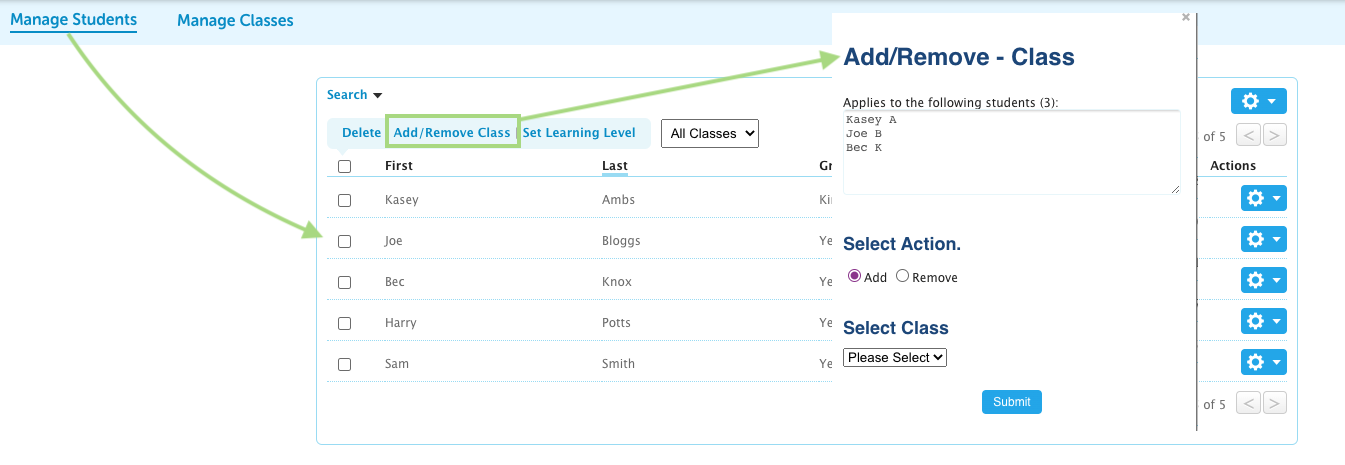
- Click Manage Students.
- Select the students by ticking the checkbox next to their name(s).
- If you need to add new students who are not listed, select Add New Students.
- Once you have selected all students, click Save.
These students will now be added to the selected class.
Sharing the Class with Other Teachers
- To share the class with other teachers at your school, click Manage next to Teacher.
- Select the teacher you want to share the class with.
- If the teacher does not appear, contact your LP Administrator to have them added to your school account.
There is now a separate group (class) for these particular students.