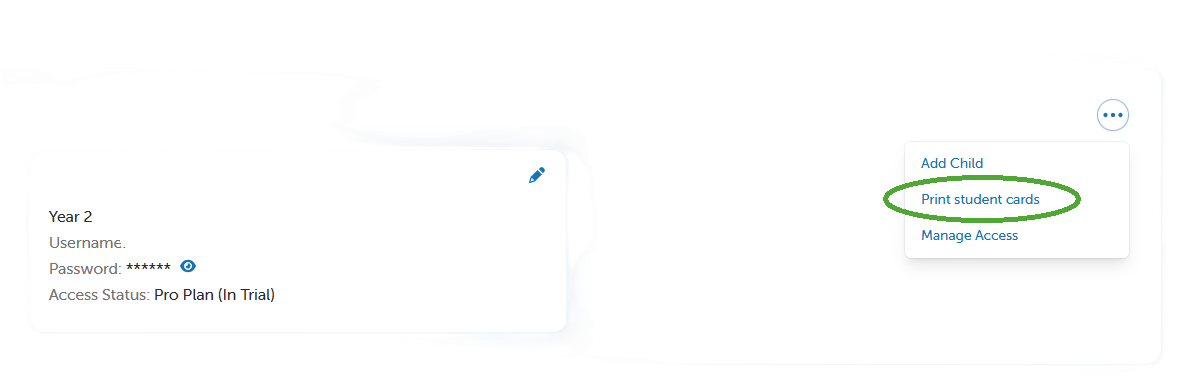
Print student login details and help students log in
Students need to log in through their own student platform.
Browser access: Students can log in using the same URL as teachers: https://app.literacyplanet.com/login
App access: LiteracyPlanet also has a dedicated app for students, which can be downloaded from the relevant app store on their tablet device.
Steps to provide log ins or QR codes
Easily print off your student cards (including a QR code) or student lists from Manage Students.
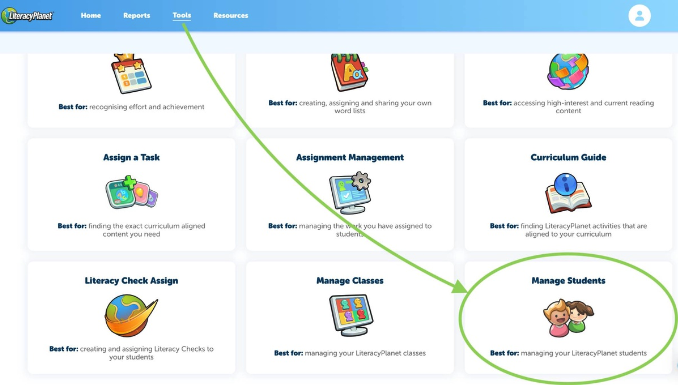
1. From your Dashboard, select the Tools tab
2. Select the Manage Students
3. Click on the three-dot menu on the right side
4. Select the option most appropriate to you (Students Cards or Student Lists)
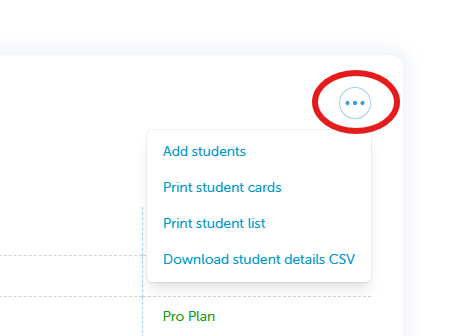
Please Note: There are 2 ways you can print student logins: Student Cards and Student List:
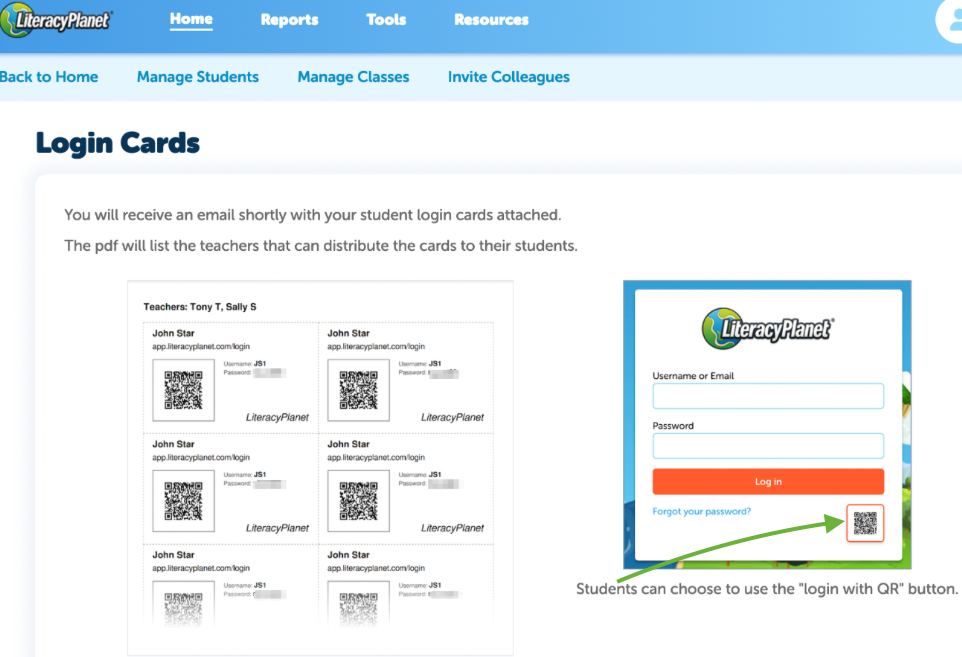
Student Cards - Receive an email and a download with your student cards attached. These cards will include a QR code that your student can use for logging in. Example below.
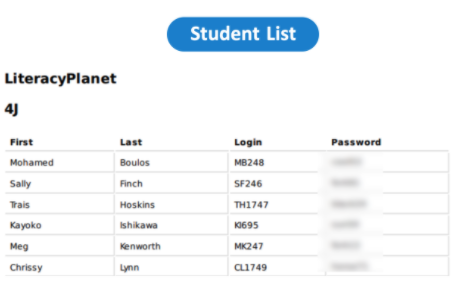
Student Lists - Print your students login and passwords as a PDF list directly from the platform.
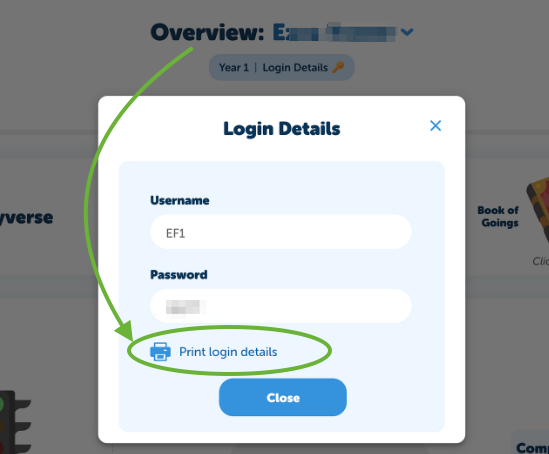
To print a single student card, first select the student from either the Student Activity Report or Mission Results page. Then, go to the Overview for the student and click on Login Details. From there, select the option to Print login details.
If you have a Home Membership, go to Manage Students and click the three-dot menu to find the Print Student Cards option.