
New Year Migration (Current School)
Quick upload - Familiar with the upload process and already have your spreadsheet ready? To get your migration started quickly, please head to our Student Upload page and follow the prompts to submit your file, ensuring it includes all the columns outlined below.
Want to download last year’s students or need a spreadsheet?
No problem - you’ll just need Admin access to follow the steps below.
- Accessing Admin Mode
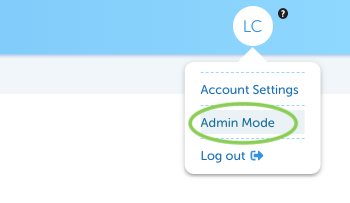
- In the Teacher Dashboard, click your profile in the top-right corner
- Select Admin Mode
If you don’t see this option, please contact your school’s LiteracyPlanet Administrator for assistance.
From Home, select New Year Migration
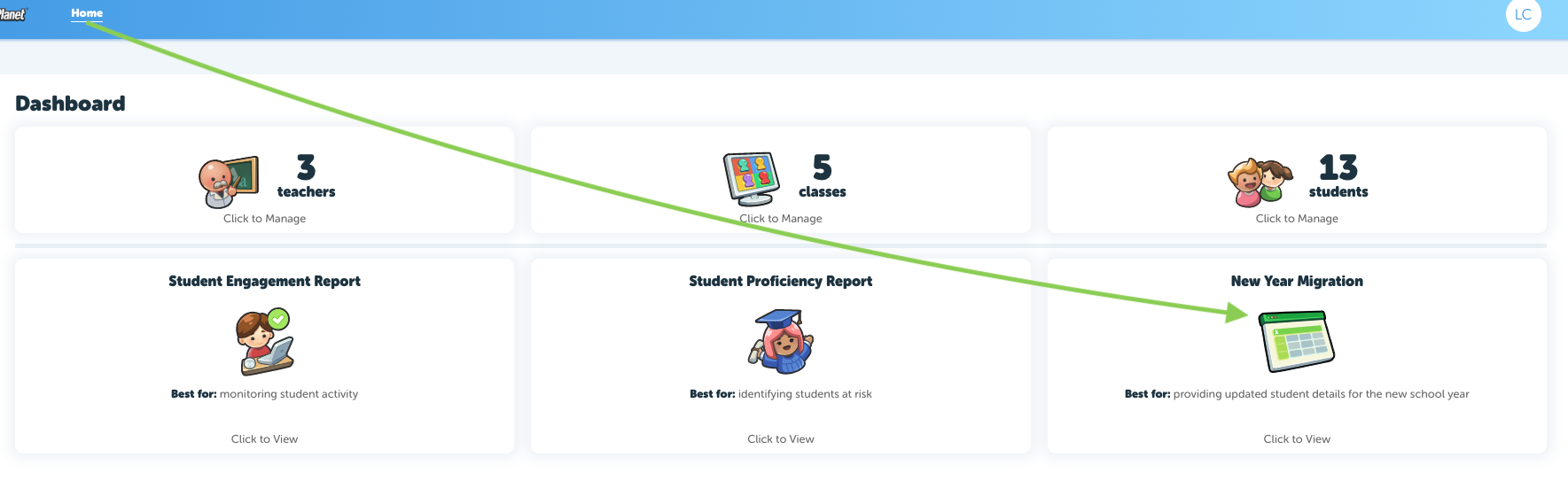
From here, your account Administrator can download a CSV file containing your current student information. This file can be updated for the upcoming school year.
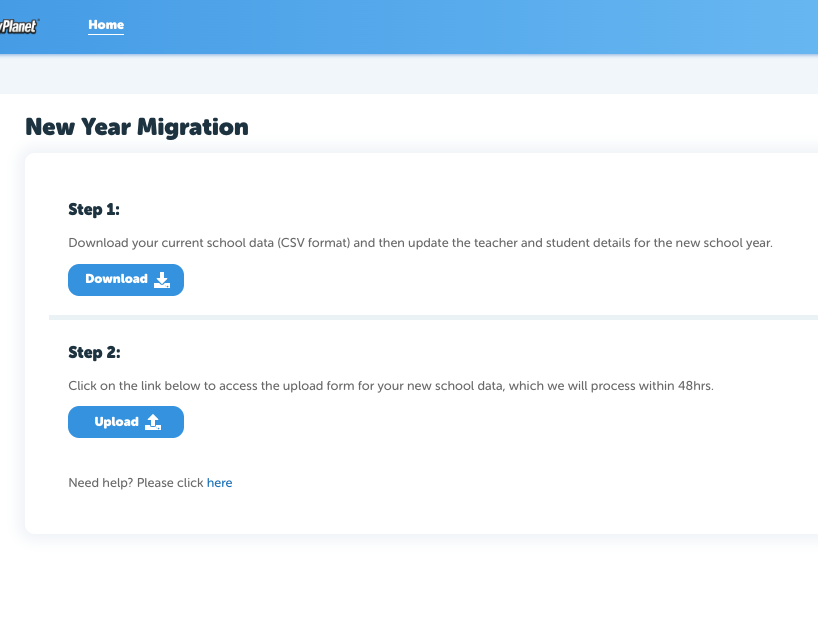
Step 1:
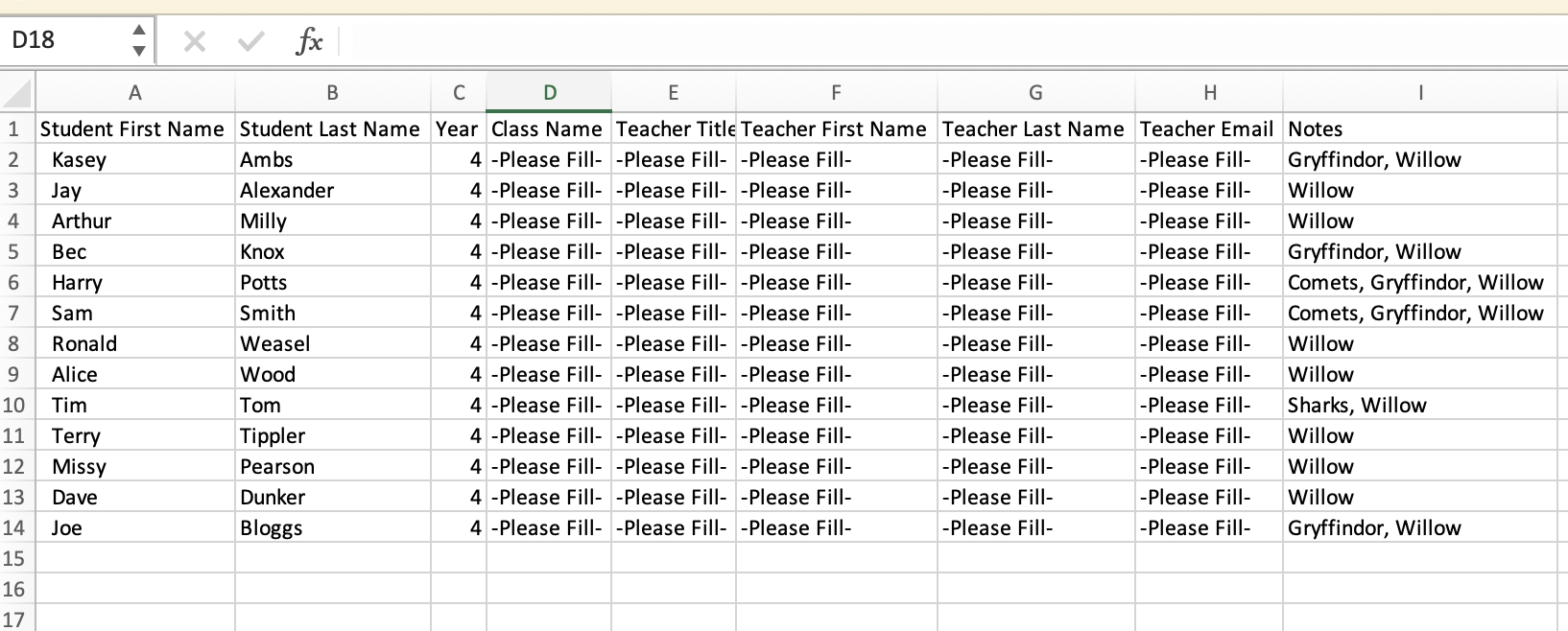
Prepare your spreadsheet for upload. The downloaded spreadsheet will include the following columns:
- Student ID (this can be left blank)
- Student first name
- Student last name
- Current year level
- Current class (listed under the Notes column for reference only)
Before uploading, you will need to:
✅ Update year levels for the new school year
✅ Assign students to their new class names
✅ Add teacher first and last name
✅ Add teacher email address
✅ Remove students who are leaving and add any new students
Once all updates are complete, remove the “Notes” column before submitting your final spreadsheet.
Step 2:
When your spreadsheet is ready:
- Click Upload, or
- Navigate directly to the Student Upload page on the website (linked under quick upload above)
Follow the prompts and attach your spreadsheet. Our team will be in touch within 2 business days to confirm once your New Year Migration is complete.
Prefer to manage this manually?
That’s absolutely fine. If you’d like to opt out of the migration process, or if you’re having trouble with the upload page, please contact us at hello@literacyplanet.com.
.