
Matrix Reporting
The Matrix puts every student and every activity in a single grid, so you can see who is on track, who needs support and who is ready to move on, without switching screens.
Open the Matrix
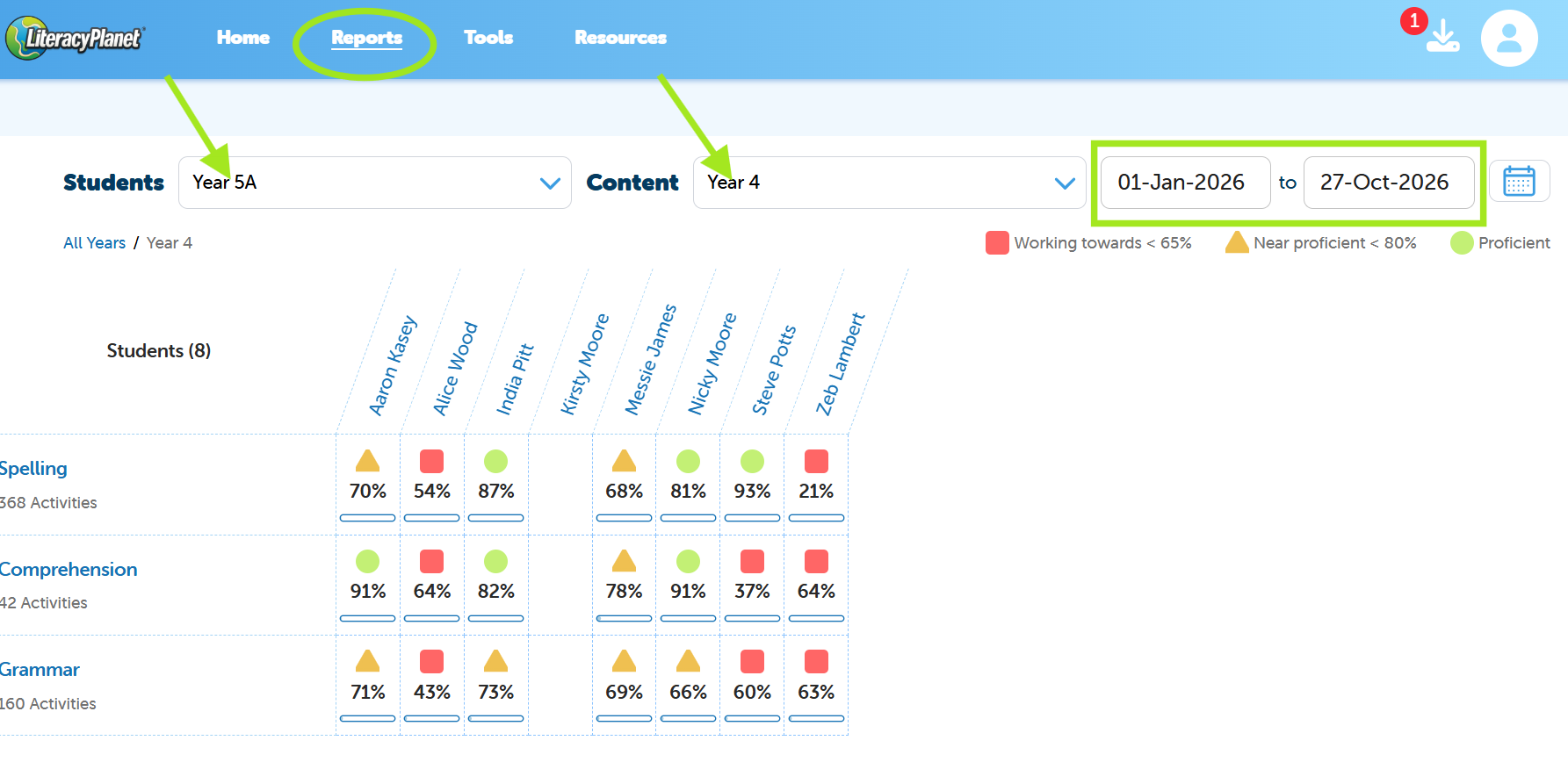
- Navigate to Reports from the main menu
- Click on The Matrix
Apply Filters
- Use Students to choose your class or group
- Use Content to choose the year level (Phonic and Sight Words only appear for P-2)
- Select the date range (results outside this range are not shown)
Drill down to activity level
- At year level you will see each strand (Phonics, Sight Words, Spelling, Comprehension and Grammar) with each student's overall result
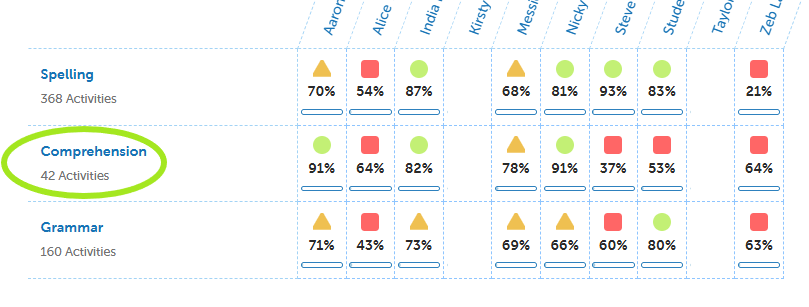
- Click a strand, for example Comprehension, to see results for each level
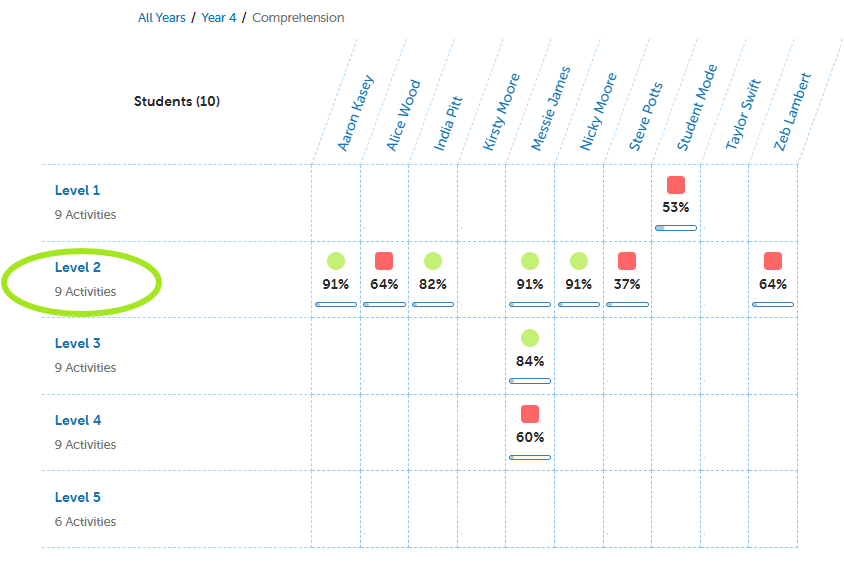
- Click a level, for example Level 2, to see results for each activity
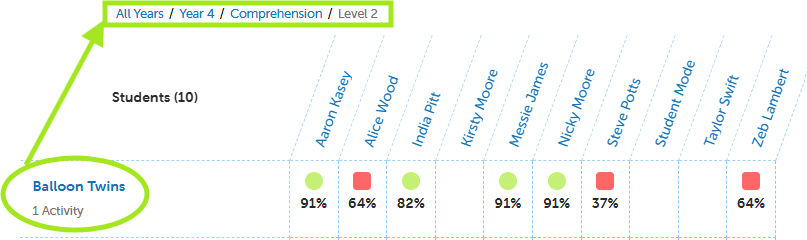
- Use the links above the grid (Year 4 / Comprehension / Level 2) to step back up at any time
What the colours mean
- Green circle: Proficient. Consider the next level if student is consistently green
- Yellow triangle: Near Proficient. Recommend reassigning the activity
- Red square: Working towards. Plan targeted support and reassign activity
The percentage under each symbol is the student's accuracy. A blank cell means there is no result for that student in the selected date range.
See attempt details
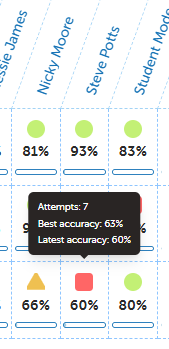
Hover over any result at activity level to see Attempts, Best accuracy and Latest accuracy. Comparing best and latest accuracy shows whether a student is improving or slipping.
Tips
- Scan down a column to see one student's results, and across a row to see how the whole class went on one activity
- Rows of red squares point to a skill worth re-teaching to the class
- Narrow the date range to a term or unit to see recent progress
Coming later 👀
Task assignment and management will be added to the Matrix next. Watch out for this release!
Matrix is available for teachers only, admins won't see this report.
Need help? Send us a quick message through the in-app chat.