
Literacy Check report
Viewing Literacy Check Results
Once your students have completed their Literacy Check, you can view their results in the Reports section.
- Navigate to Reports.
- Select the Literacy Check report.
- From the Check dropdown, choose the Literacy Check you want to review.
Understanding the Literacy Check Report
The Literacy Check graph displays aggregate results for the selected Literacy Check, giving you an overview of student performance.
- Use the Sort by function to organise students by a specific category.
- Review the proficiency levels, which are colour‑coded for each assigned strand.
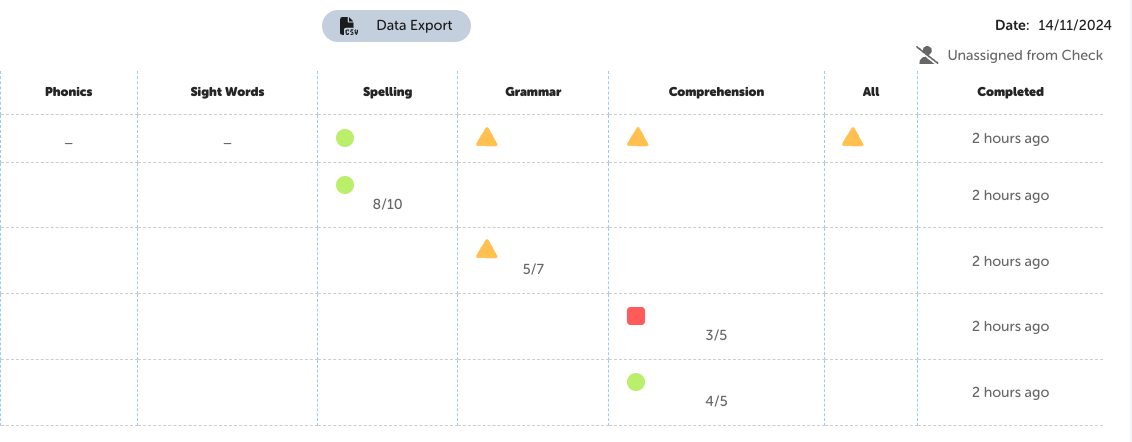
- Under Activities Completed, use the dropdown to view individual student results.
- Click on an image to view a student’s responses in more detail.
Here’s a glimpse of a student's response for spelling!
Exporting Literacy Check Results (CSV)
You can easily export your Literacy Check results as a CSV file.
- Click the Data Export button in the report.
- You’ll receive a notification once the export is ready.
Click the download icon next to the profile dropdown to download your CSV file.
- This allows you to save, share, or further analyse your Literacy Check data outside the platform.