Task content preview
Preview Task Content Before Assigning
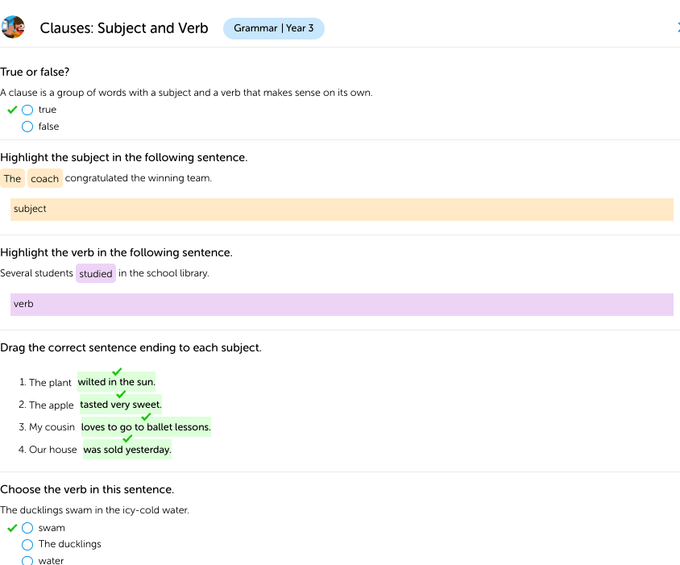
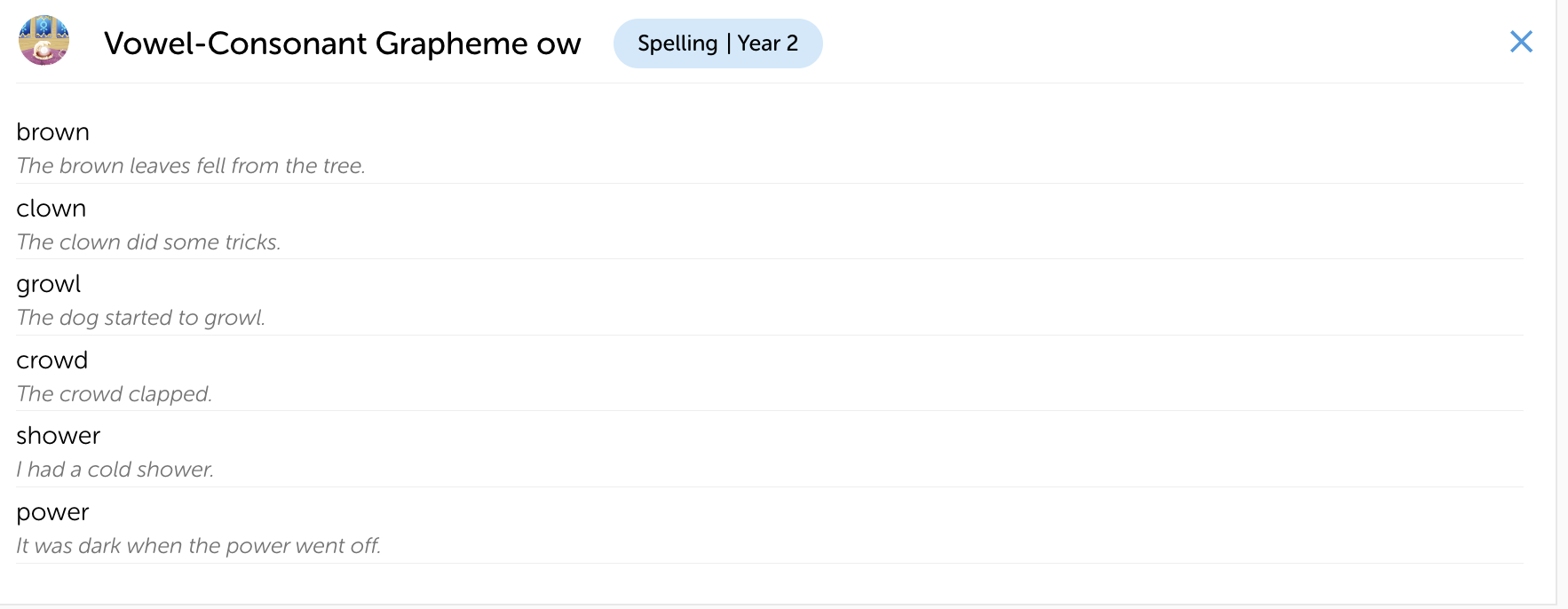
Teachers can now preview the content of a task before assigning it to students.
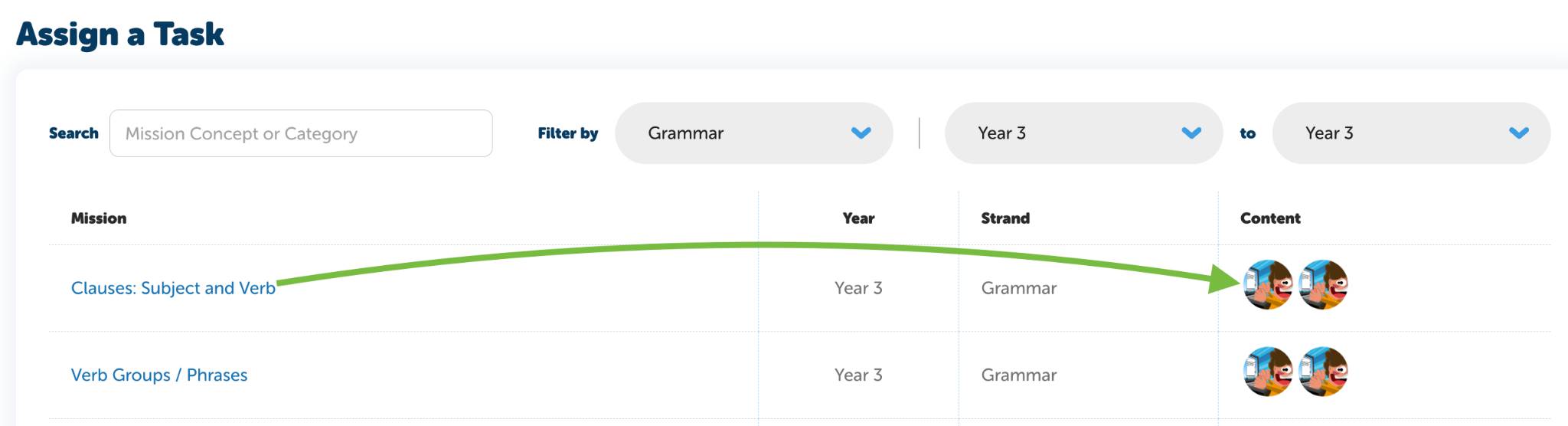
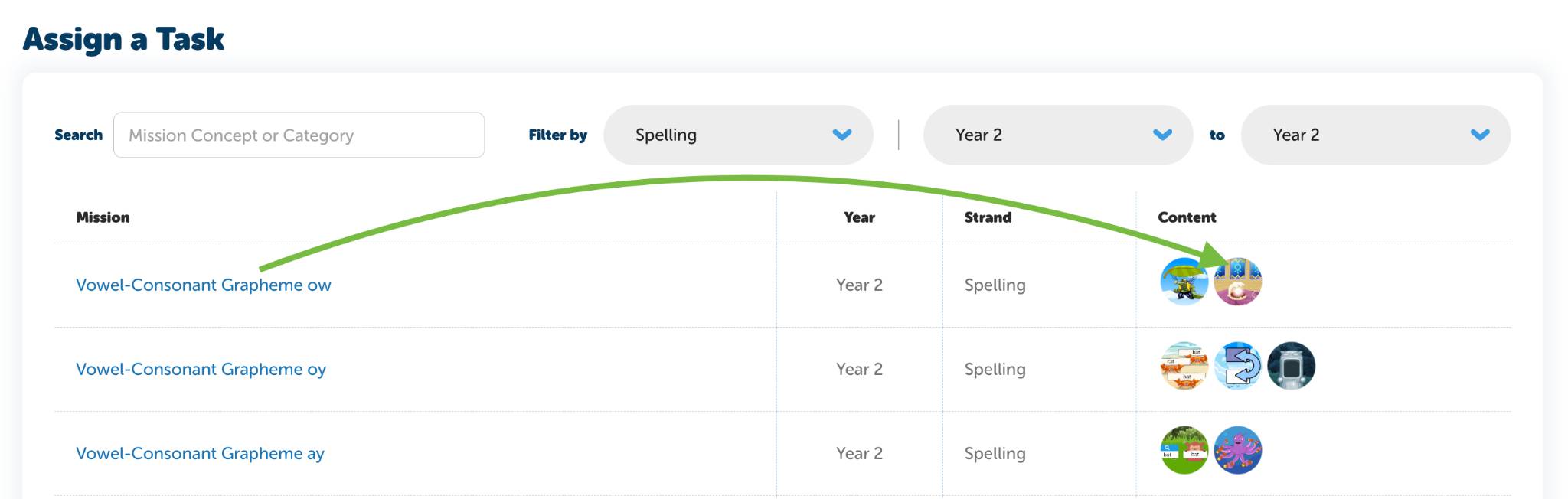
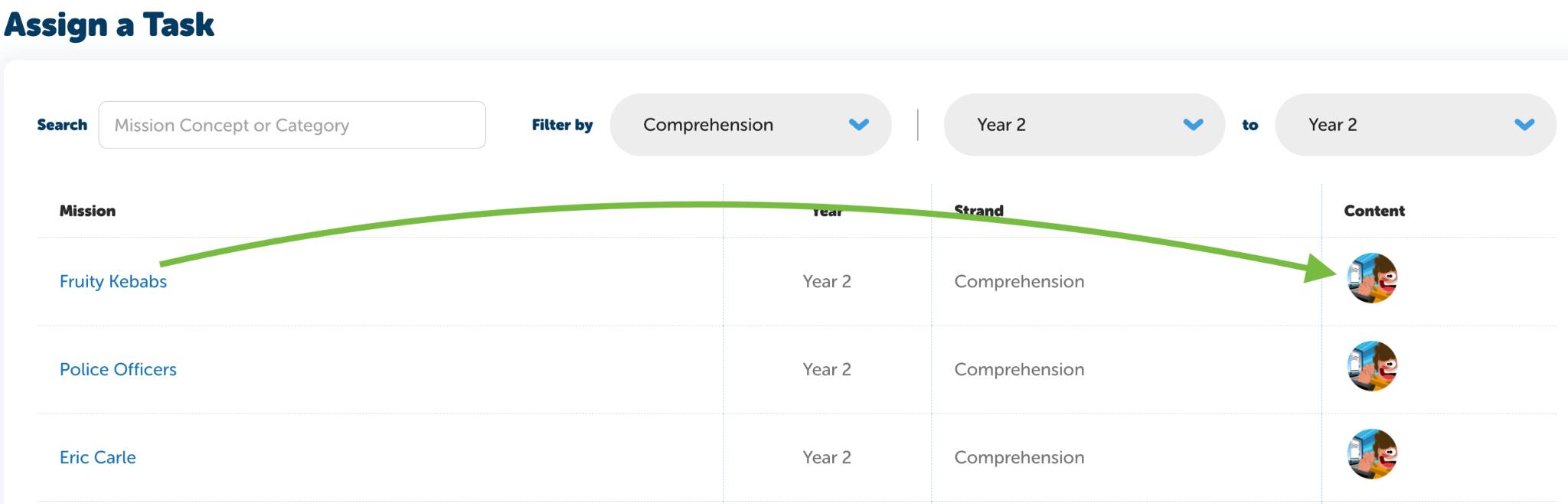
Go to Tools → Assign a Task and look for the Content column. From here, teachers can preview the Learn, Practice, and Test lessons included in each task before assigning.
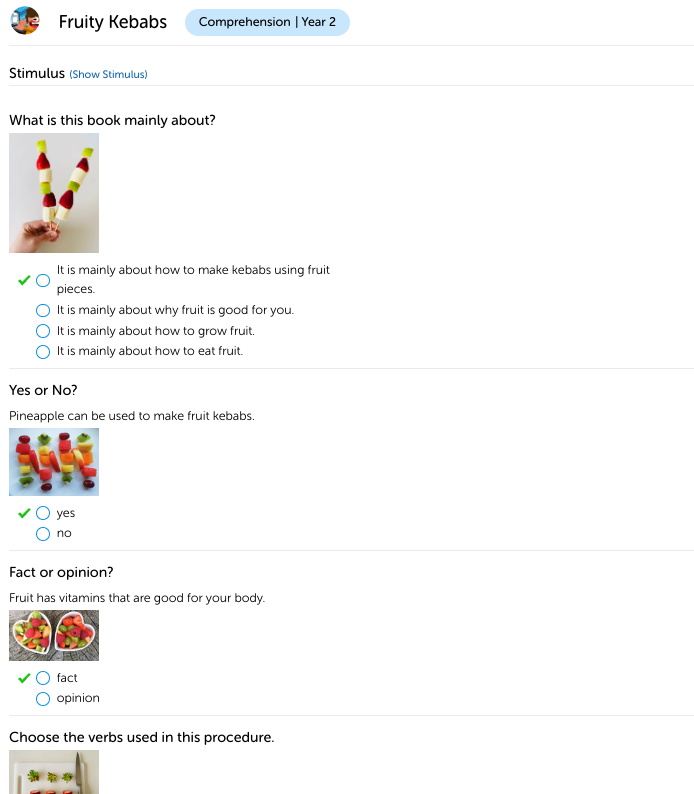
You can refine your view by applying filters to narrow down the tasks displayed. To see more detail, simply click on the image shown in the Content column.
👉 Tip: The final image in the Content column always represents the Test component. Depending on the task selected, students may complete one or two Practice sessions before taking the test.
Examples:
Content for spelling task, year 2.
Content for comprehension task, year 2.
Content for Grammar task, year 3