
Student results
Review Individual Student Performance
Teachers can now review a student’s performance data at an individual level, making it easier to identify specific areas where additional support may be needed.
To access this information:
- Go to Reports → Mission Results and select a student.
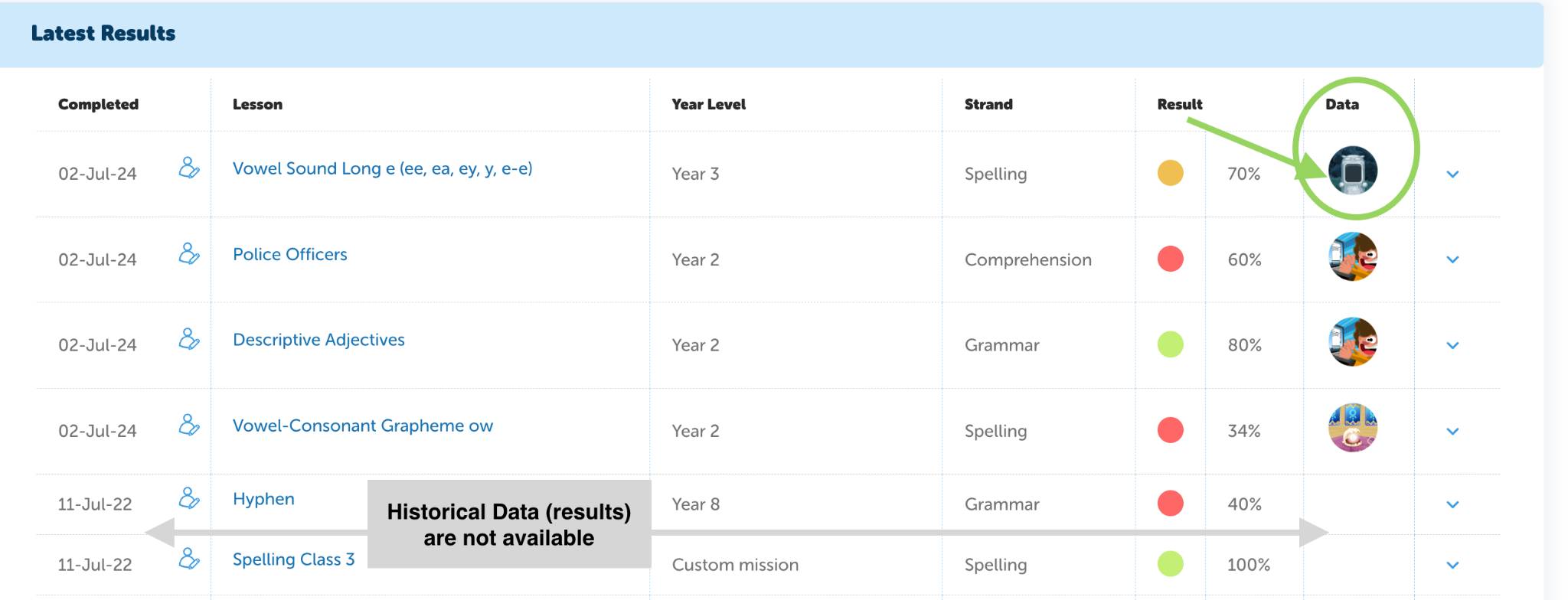
- Scroll down to Latest Results.
- Use the newly added Data column to view results for each lesson the student has completed (note: historic results are not available).
- Click the icon to view the questions and answers.
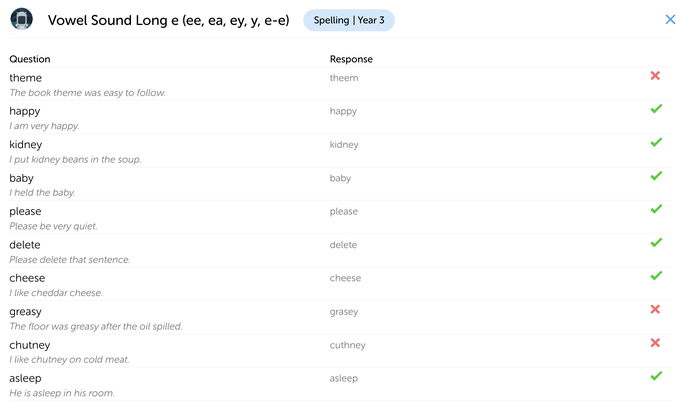
From here, you can see each test question alongside your student’s responses, giving deeper insight into their understanding and progress.
In a spelling lesson ❌ indicates your student answered incorrectly.
✅ means the student answered the questions correctly.
Response shows the answer they provided.
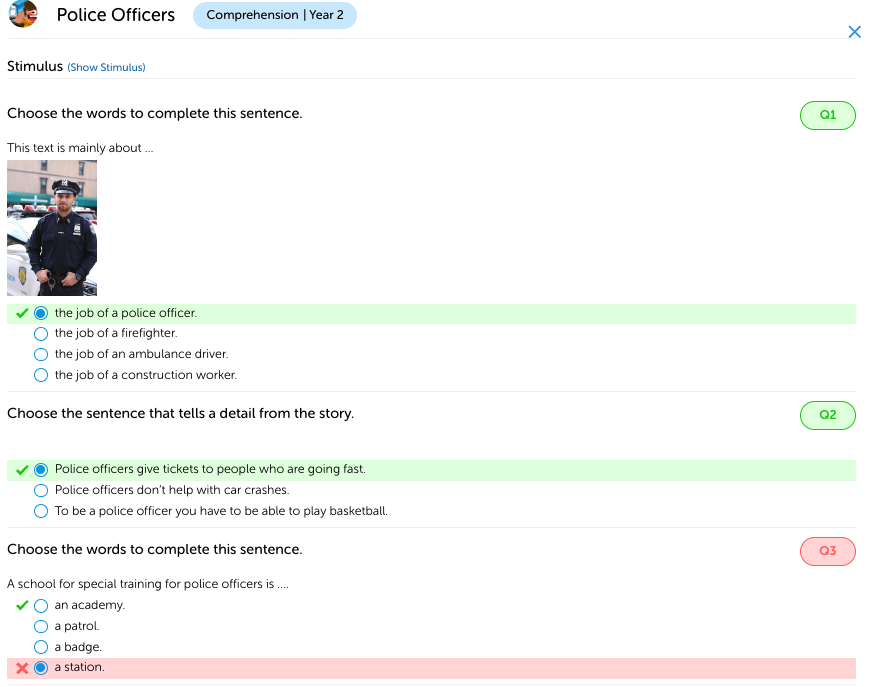
In a comprehension lesson, the results will display the student's answer with a ✅ when correct. If the answer chosen was incorrect, it will be marked with an ❌ symbol.
Teachers can choose to show or hide the stimulus for comprehension tasks.
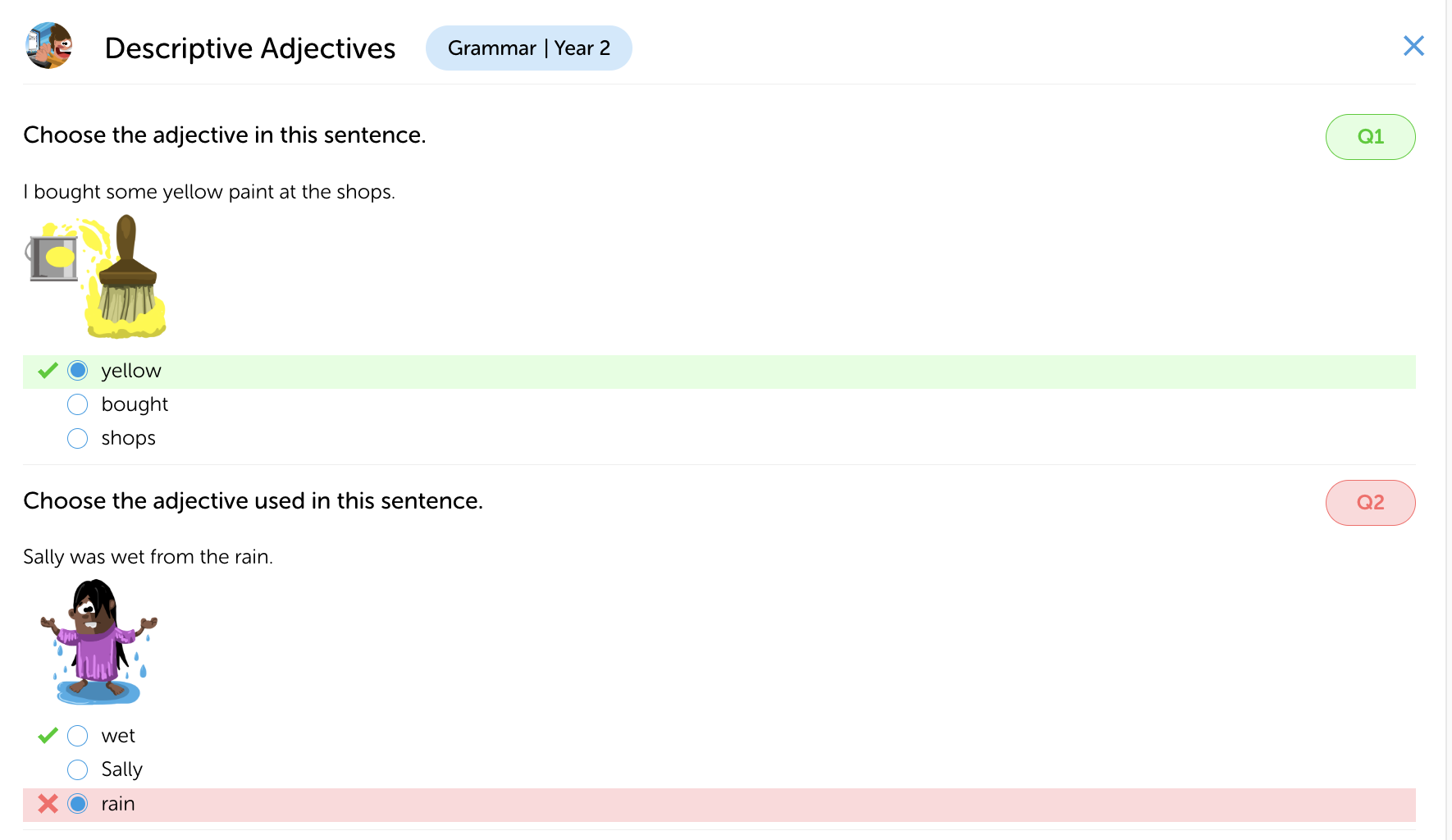
In a grammar lesson, the results will display the student's answer with a ✅ when correct. If the answer chosen was incorrect, it will be marked with an ❌ symbol.
Should you have any questions about Student Results please reach out to us from the in-app chat. A member of the team will get back to you 😀