
Groups within Classes
Within a class, you can now easily organise students into teaching groups 🎉
Set up groups within a class and add selected students to each group. You also have the option to add additional teachers to a class or group.
To get started:
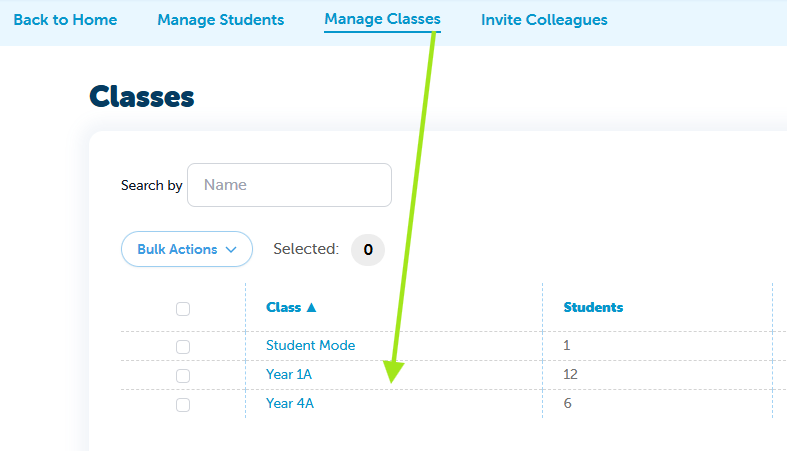
From Manage Classes, select your class - in this example, we’ve selected Year 1A.
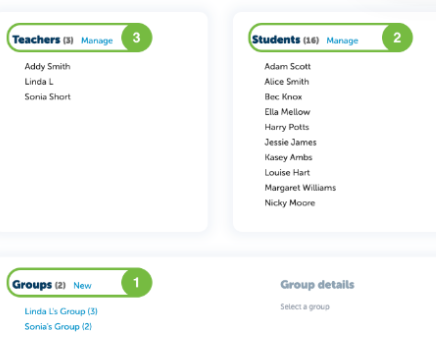
Groups Section
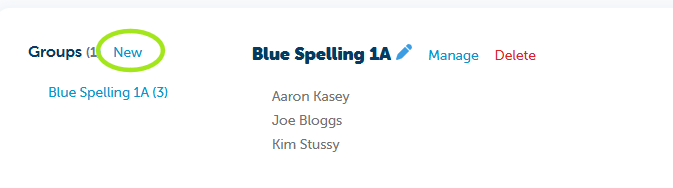
- Select New.
- Enter a group name (e.g. Red Spelling 1A).
- Select Create Group.
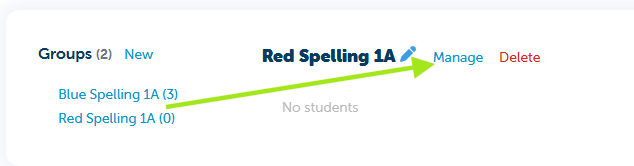
- Once created, Red Spelling 1A will appear without students assigned.
- Select Manage to add students to the group.
Students Section
- All students are listed here.
- Tick the box next the student name to add them to the group.
- Select save
Teachers Section
- To share your class & groups with other teachers at your school, select Manage.
- Add or remove teachers as required.
Click on the group you’ve created. Any students assigned to the group will appear in the Group Details section.
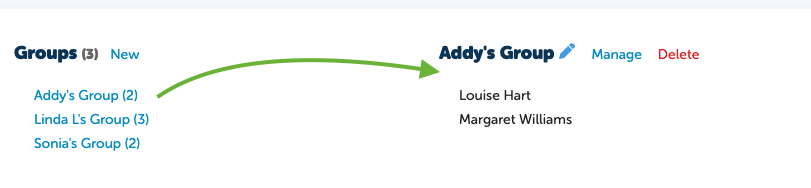
There is now a separate group for these students, making it easy to organise targeted teaching.
You can quickly create one or more groups within a class and allocate students to each group. At any time, you can move students between groups or delete a group as needed.
Teachers who share a class will also have access to any groups that are created.
When assigning tasks or viewing reports, use the group filters to focus on specific group results.
Have a question? Reach out to us via the in-app chat and we’ll be happy to help 🤩