Quick Start - Parents
Congratulations on signing up for your trial! Lets get started with the quick start menu.
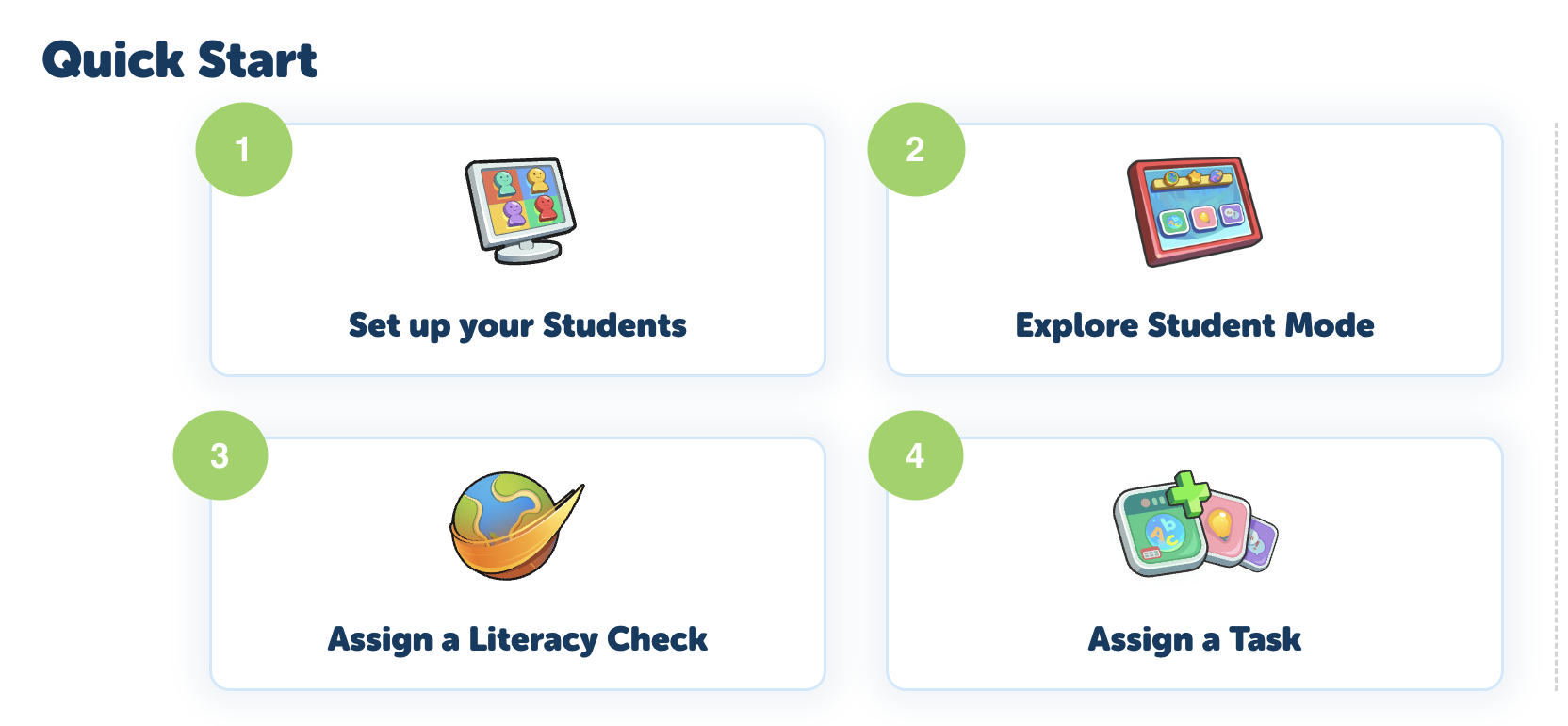
There are 4 steps to complete your set up:
STEP 1 - Click on Set up your Students
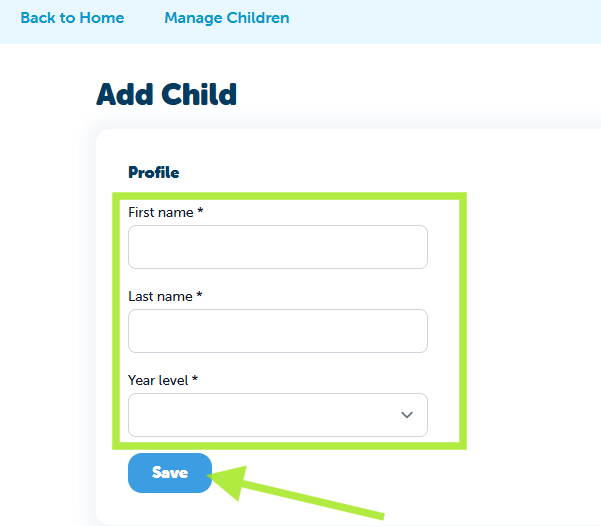
Enter your first child's details and select Save.
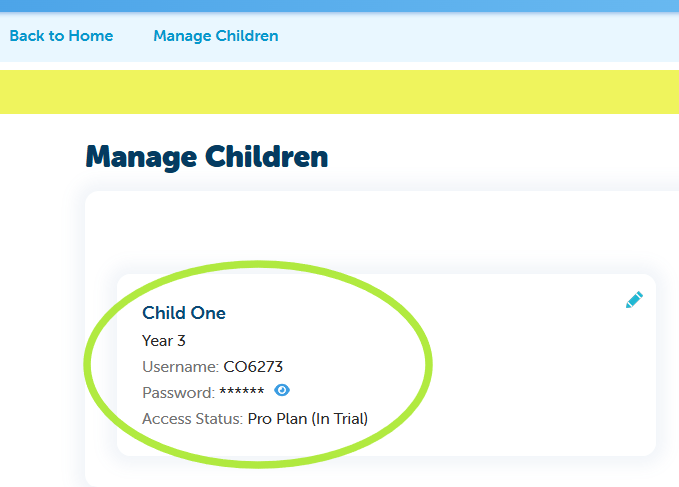
You’ve now added your first child, and their login details are available in the Manage Children section.
Each child has access to their own student platform and can log in using the unique username and password provided. You can also view your current subscription plan. All new customers begin on a Pro Plan trial
To add another child, select the three dots in Manage Children and choose “Add Child.”
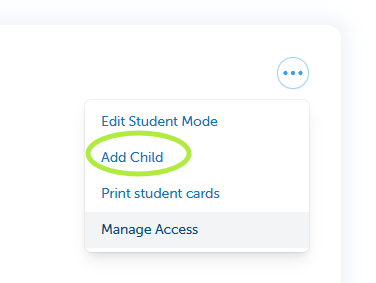
From Manage Children you can print your student logins and Manage their access.
You and your child can log in using the same link when accessing the platform via a browser.https://app.literacyplanet.com/login
We have a dedicated Student only app for tablet devices and this can be downloaded from the relevant app store:
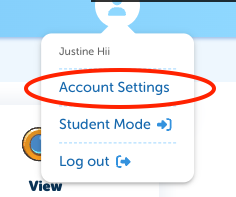
To manage your account select Account Setting from the profile dropdown:
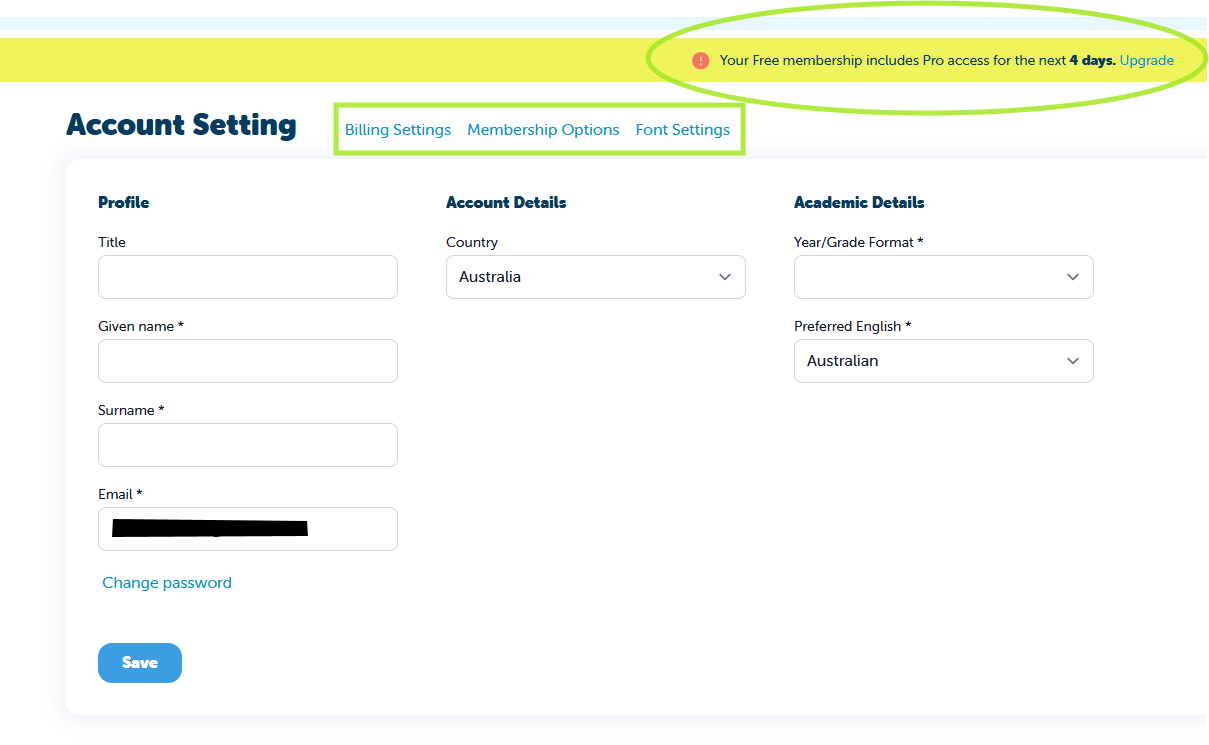
In Account Settings, you can check whether you’re still on a trial, view your membership options, and update your profile and billing details. There is also an option to adjust the font settings.
STEP 2 - Explore Student Mode
Explore Student Mode to check out the student platform:
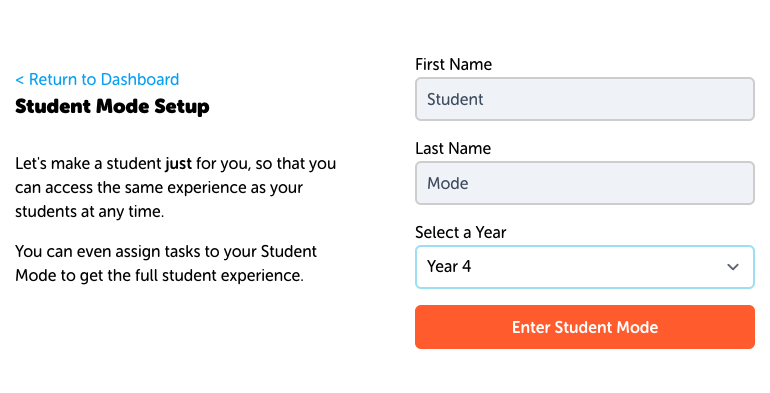
Student Mode can now be found in the Profile dropdown under Account Setting:
STEP 3 - Create a Literacy Check and assign this to your children
STEP 4 - Assign tasks (tasks are locked until Literacy Check is complete)
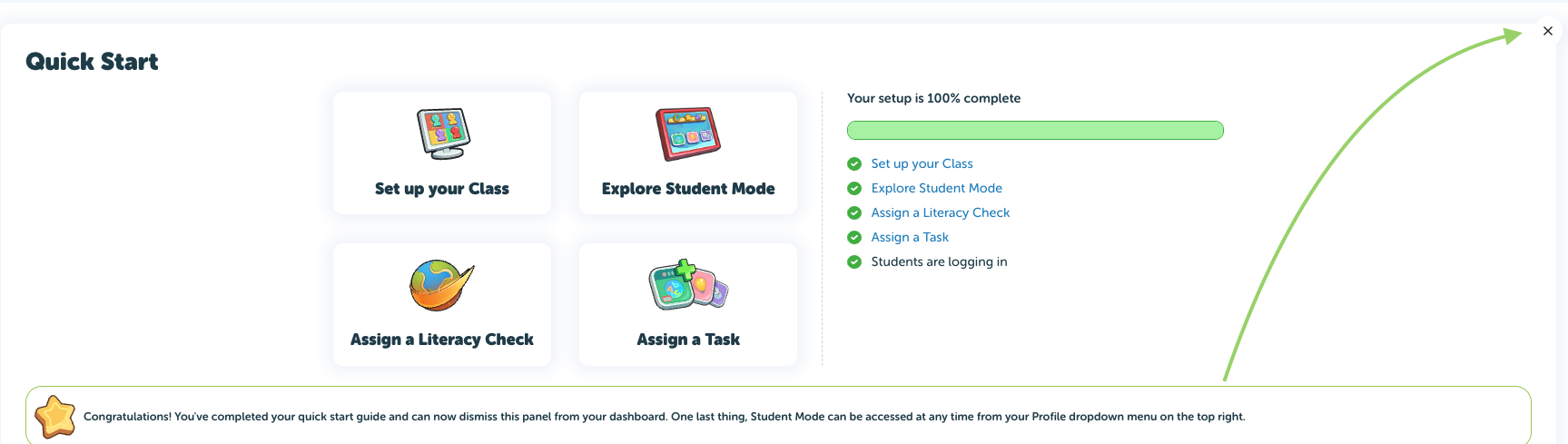
Once set up is 100% complete you can close down the quick start window in the top right corner.